All posts by Larry Catt

Configuring AWS IAM user for MFA

MFA stands for Multi Factor Authentication and provides a more secure user authentication method than just username and password.  MFA requires that you have something you know (IE a Password) and something you possess (IE a cell phone).   It is one thing to obtain someones password, but much more difficult to get the password and a physical device the user possesses.  At a minimum you want to protect the Root Account and IAM users with MFA.   In this example, we will be using google Authenticator on our cell phone.

Types of MFA devices:

  • Virtual MFA – Google Authenticator or Authy 
  • Universal 2nd Factor (U2F) Security Key – Yubikey,  
  • Hardware Key Fob MFA Device 
  • Hardware Key Fob MFA Device for AWS GovCloud(US)  

  1. The following is required before you create configuring MFA for IAM users and ROOT account. 
  • An Active AWS Environment. 
    • Root access to AWS 
    • An Active IAM User. 
    • A cell phone

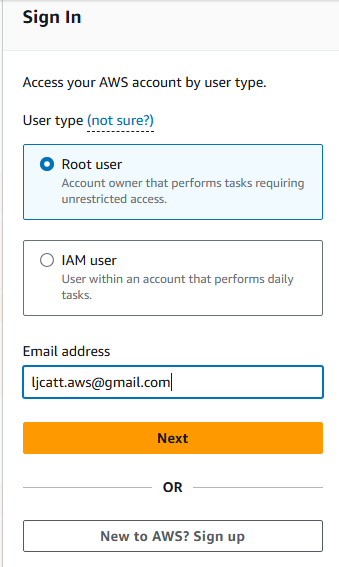
2. Logon to AWS as the root user at URL:  https://signin.aws.amazon.com/ 
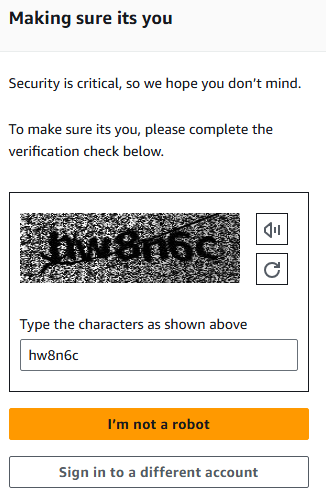
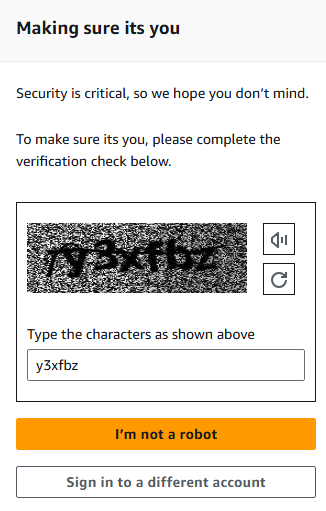
3. Prove that you are not a machine. 
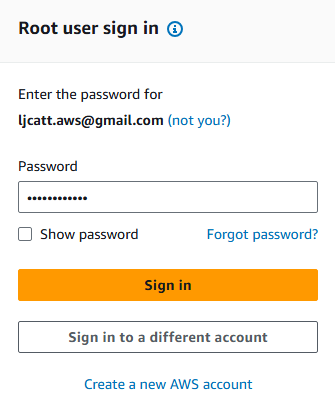
4. Provide you password 
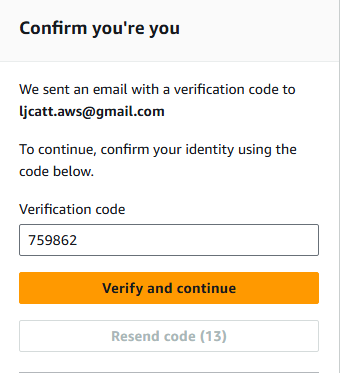
5. Retrieve you code from your email account and enter it. 

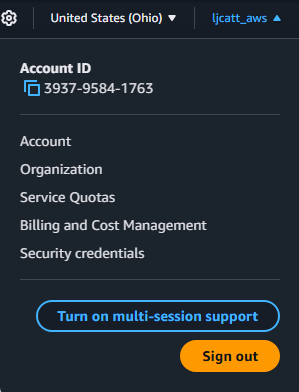
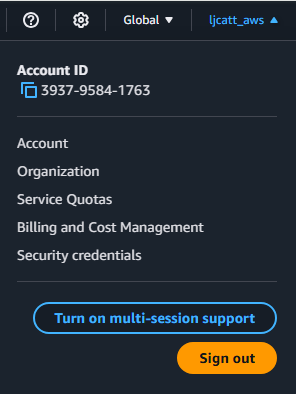
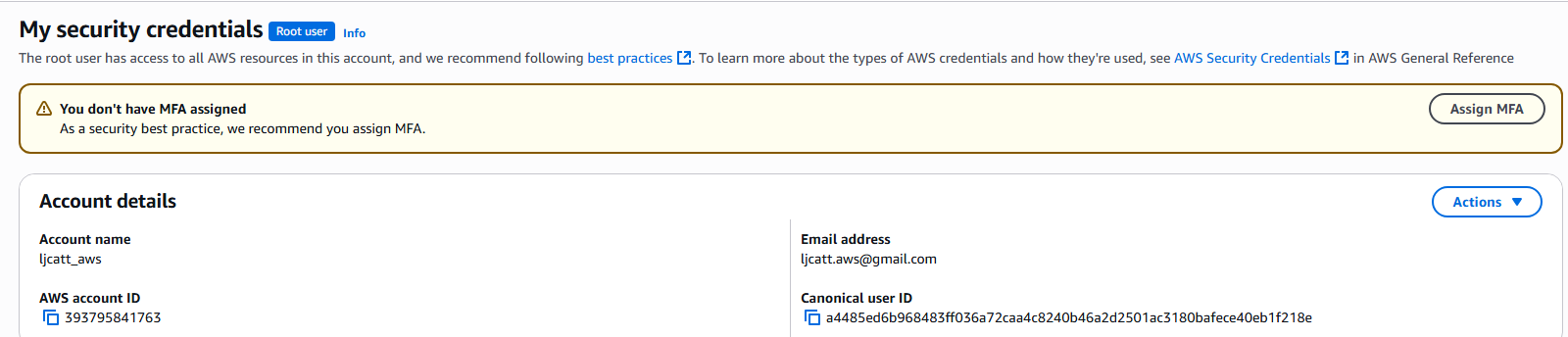
6. Once logon, click on the account name and select Security credentials. 
7. Select Assign MFA. 
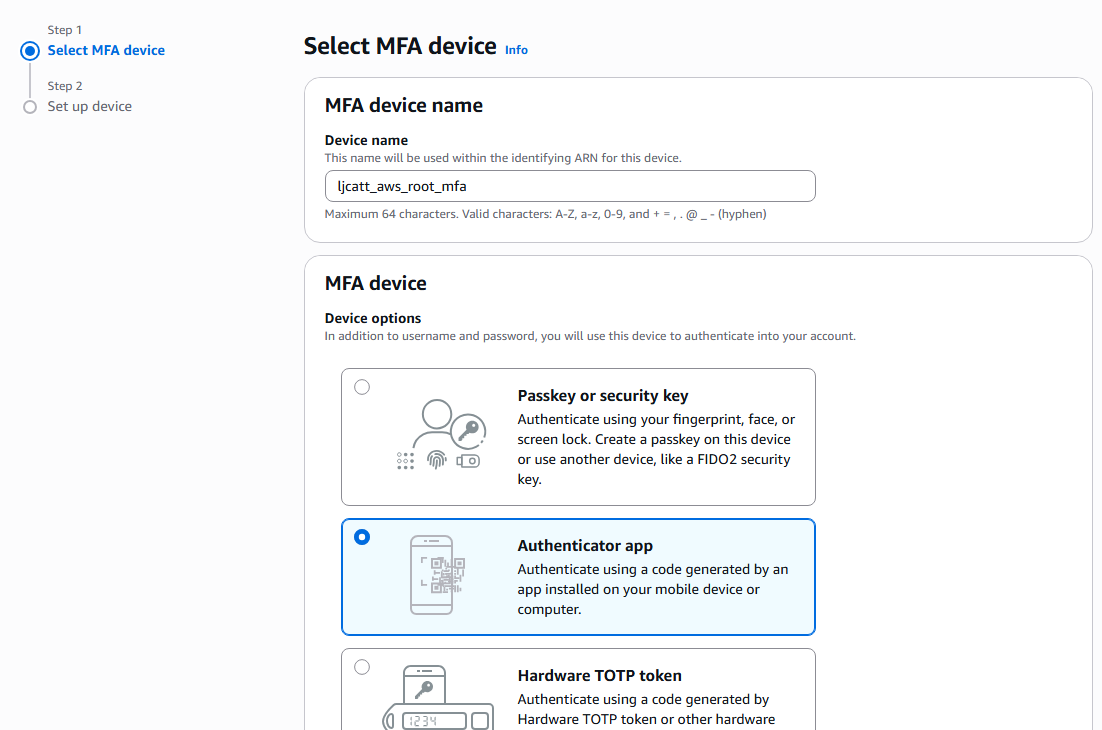
8. On the next page, name your device (ljcatt_aws_root_mfa), select authentication app, and press Next. 
9. On the next page click show QR code, install Google Authenticator and open.  Scan the QR code. 
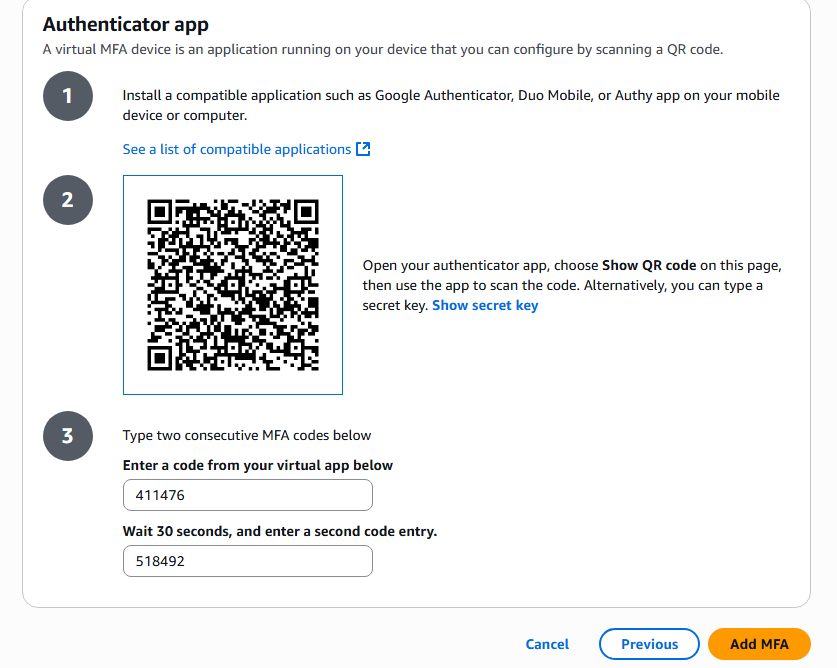
10. After Scanning the QR Code you will get two separate codes to enter, the first will be provided immediately and the second after 30 seconds.   Enter the first and second codes and press Add MFA button. 

11.  After which you will receive a confirmation.  

12. Test the MFA settings by logout of AWS by clicking the user in the top right corner and selecting Sign out 
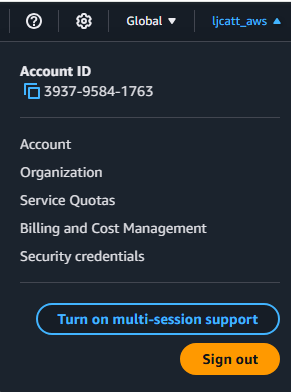
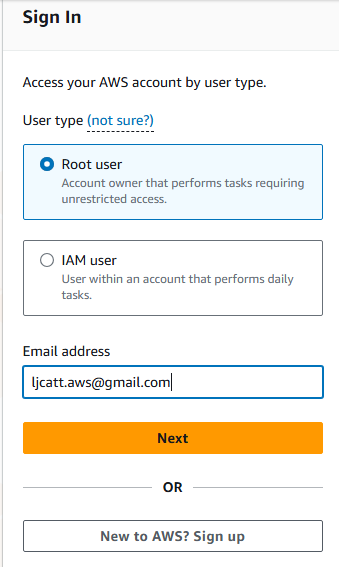
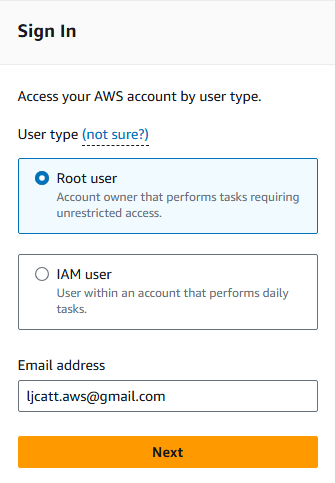
13. Select Login to console, Root user, enter email address and click Next. 
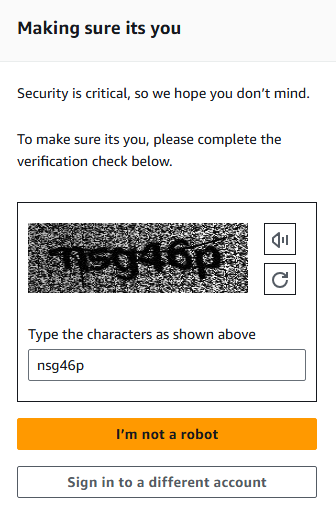
14. Validate that you are not a robot. 
15. Enter your password and click Sign In 

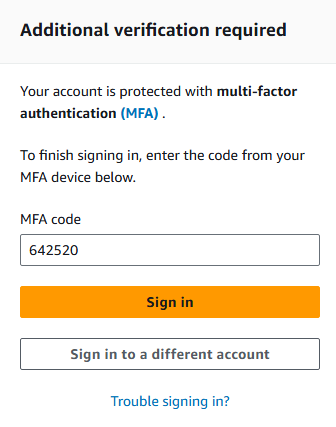
16. You will see a request for MFA code sent to google authenticator.  Open the app and retrieve the code, which is only good for 30 seconds. 
17.  Once you provide the correct MFA code you will be logon to your AWS Concole. 
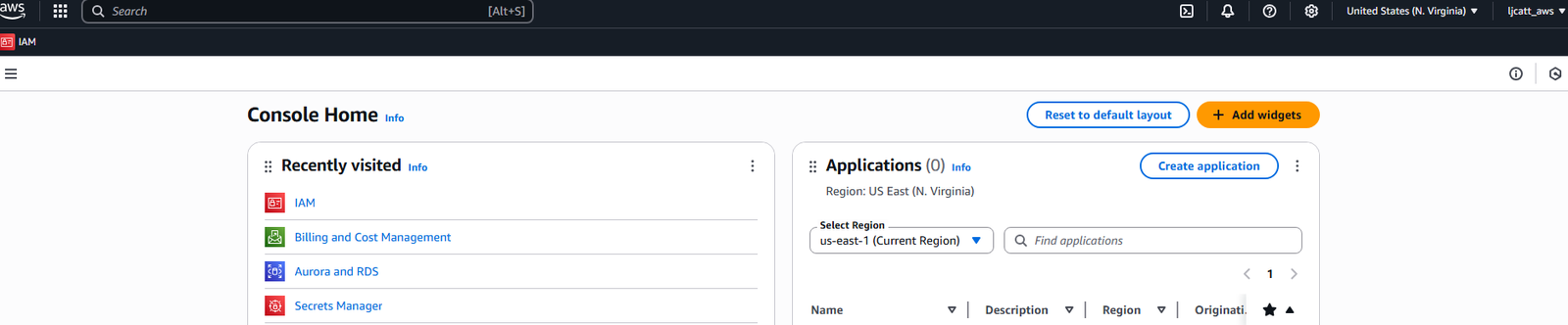
18. This completes the setup of MFA. 

Create AWS IAM Policies

IAM Policies govern the rights an individual user has in the AWS environment.  Policies can be assigned to both groups and individual users.  Inline policies are those granted directly to a user account.   It is best practice to assign policies to groups and then assign each user to a group.,
Policies consist of:

  • Version – mandatory specifies the iteration of the policy. 
  • ID – optional specifies the identifier of the policy. 
  • Statements – mandatory specified policy right. 

Policy Statement consists of:

  • SID – optional specifies the statement identifier. 
  • Effect – specifies the action of the statement ie(“Allow”,”Deny”) 
  • Principle –  specifies the account, user, role that this policy applies to. 
  • Action – list of actions this policy allows or denies. 
  • Resource – list of resources to which the actions are applied to. 
  • Condition – optional specifies when the policy is in effect.  
  1. The following is required before you create IAM Policies. 
  • An Active AWS Account. 
    • An Active email to receive alerts. 
    • Access to IAM User with administrative rights.  

2. Logon to AWS as the IAM user at URL:  https://signin.aws.amazon.com/ 

3. In the search bar type IAM, highlight the Star next to IAM (So it will appear on you Console) and select IAM. 

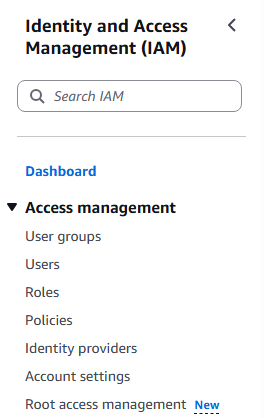
4. On the left hand side of the screen, scroll down and select policies. 

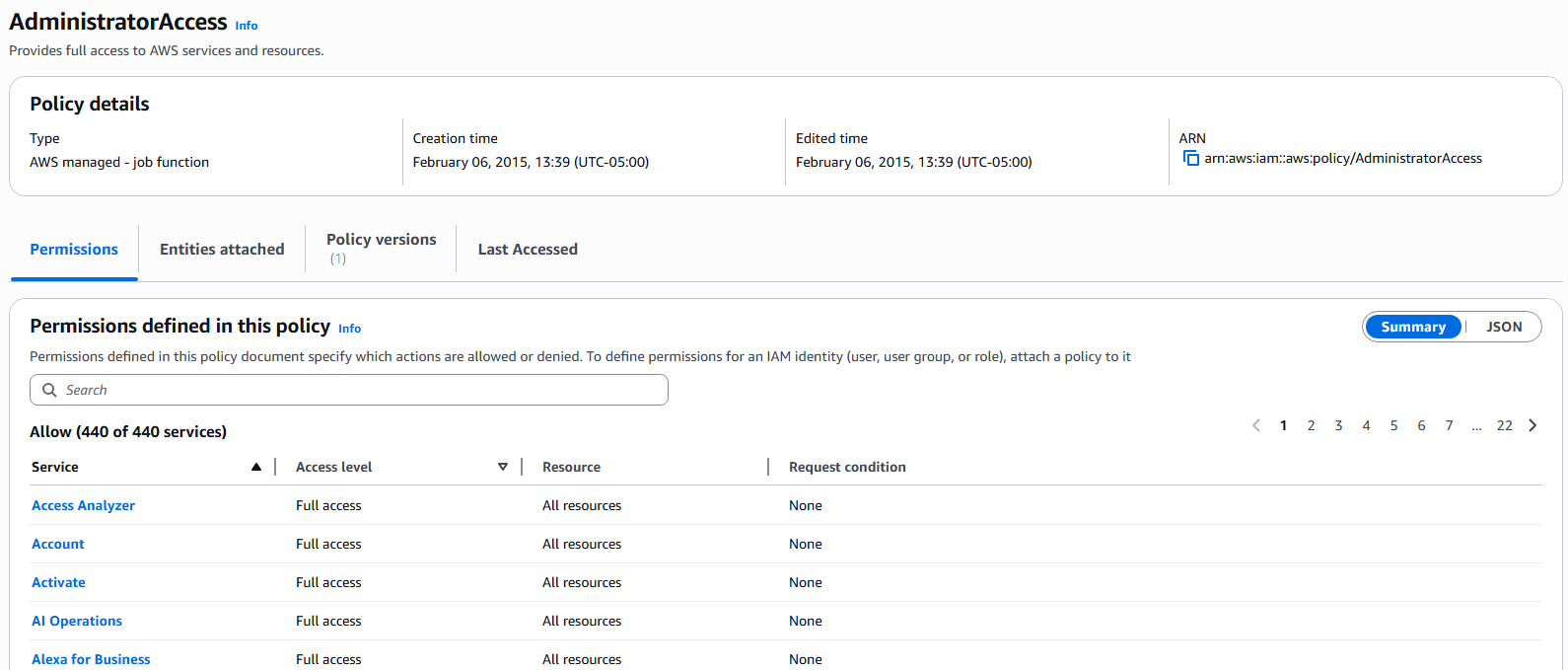
5. All default AWS policies will be presented to you on the screen as well as a button on the right hand side to create a custom policy.   First let us view an existing policy definition.  Select “AdministratorAccess “ policy 

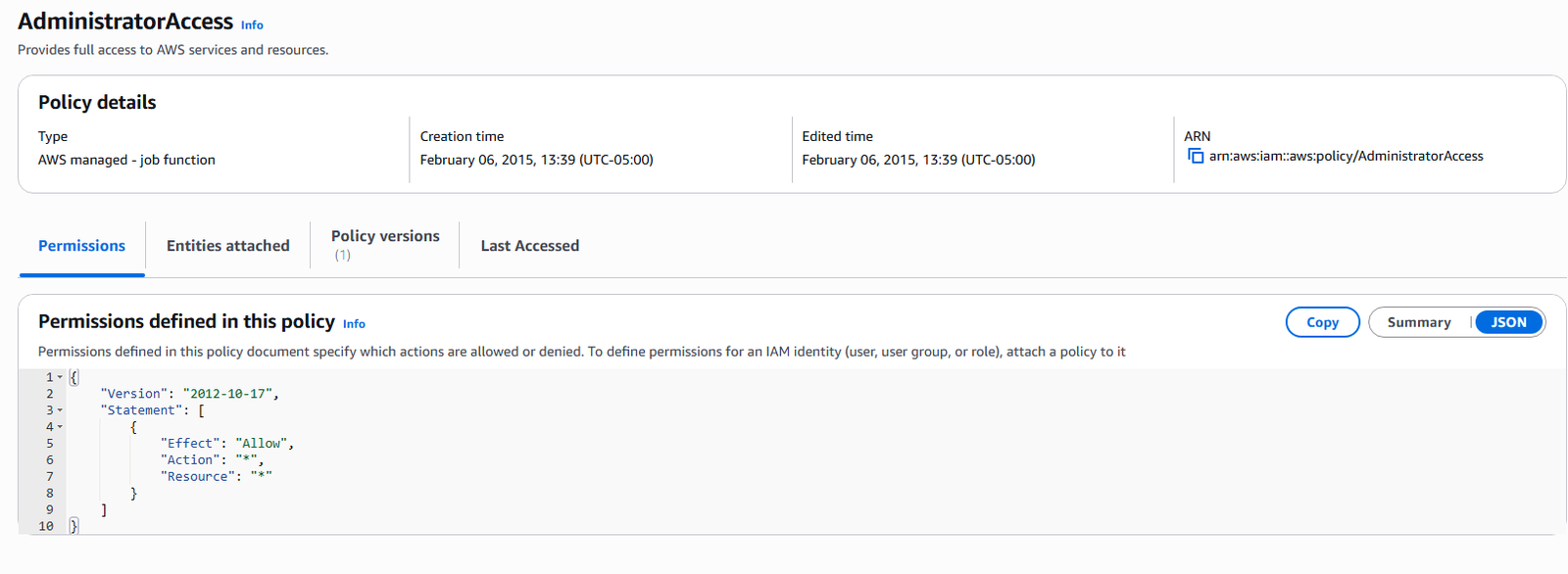
6. On this page you will be presented with all the services contained in the “AdministratorAccess” policy,  click on the JSON tab to see the code for this policy. 

7. The page displayed is the actual JSON code that governs the “AdministratorAccess” policy. This is key because it allows you to build, edit and assign policies with code outside of the AWS GUI.  In future lesson we will learn to deploy various types of code to control your AWS enviornment. 

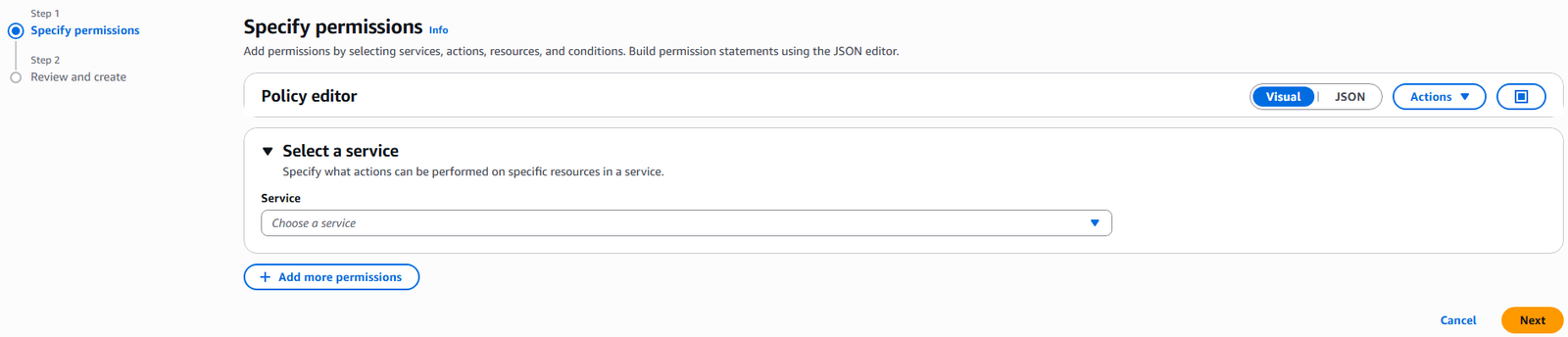
8. From the left hand sidebar select Policies ? Create Policy. You will be presented with a two step process to create a custom policy or you can choose the JSON editor to write you own code. 

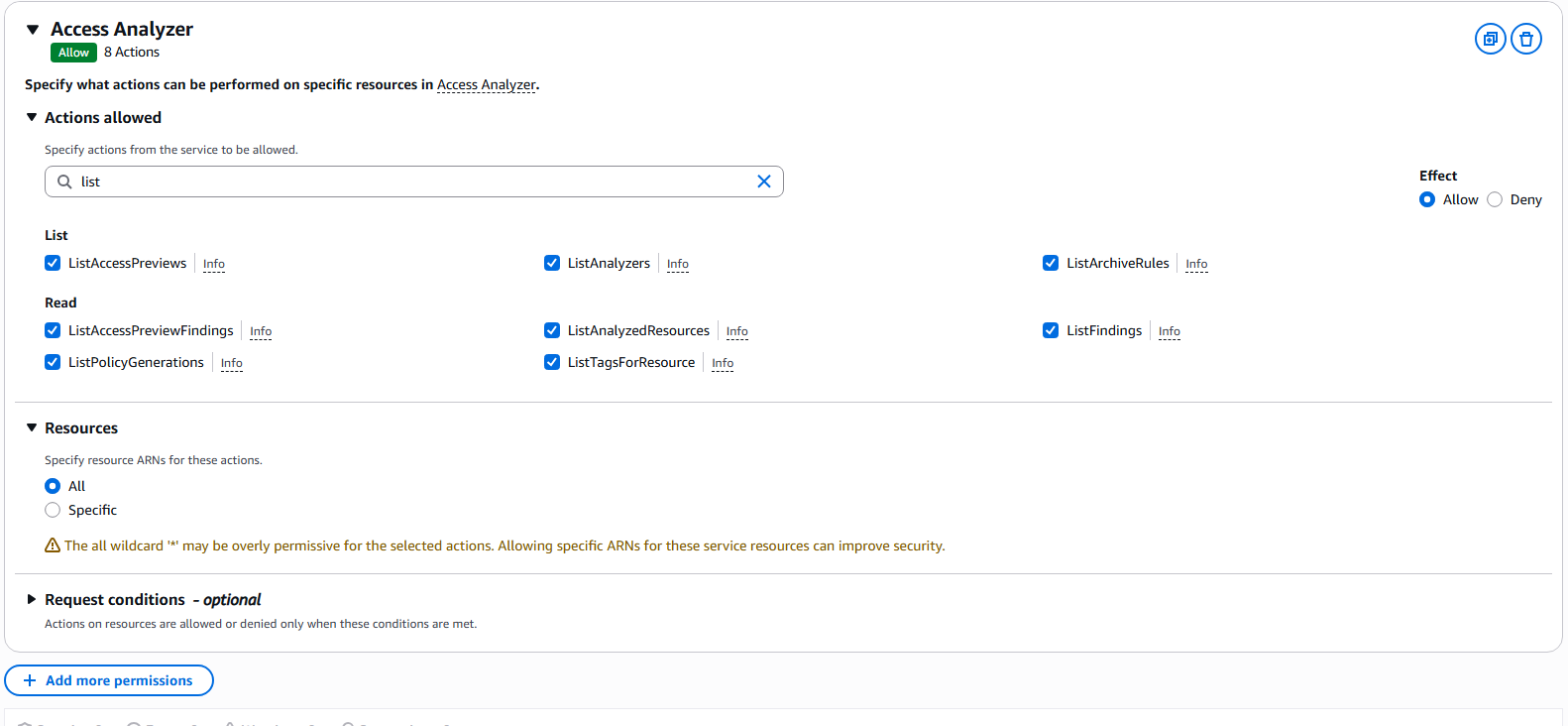
9. We will create a policy for viewing objects.   Type list in the actions allowed, Select all the listed options, under resource select ALL, and press the next button. 

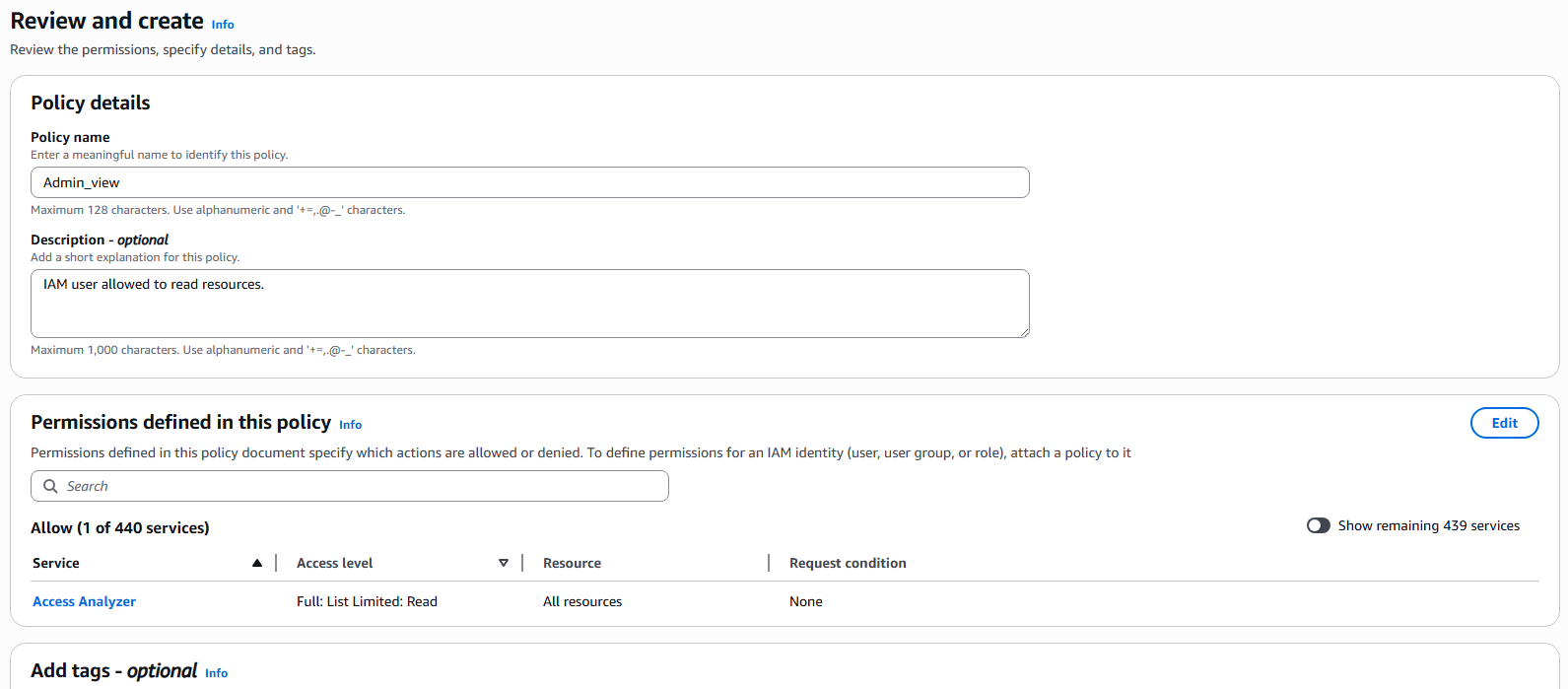
10. In the policy detail section type a Policy name and description.  The policy Access Analyzer is already selected and press Create policy.  

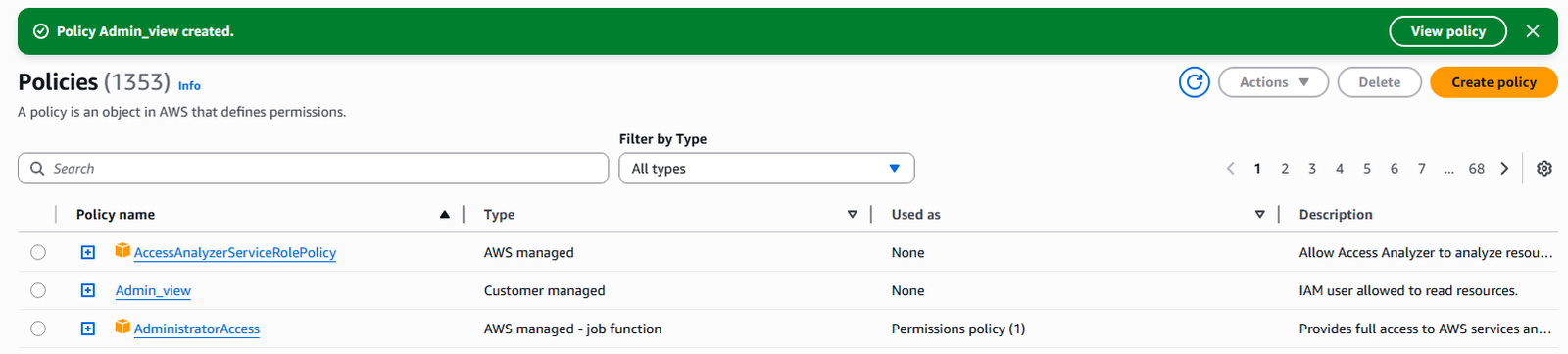
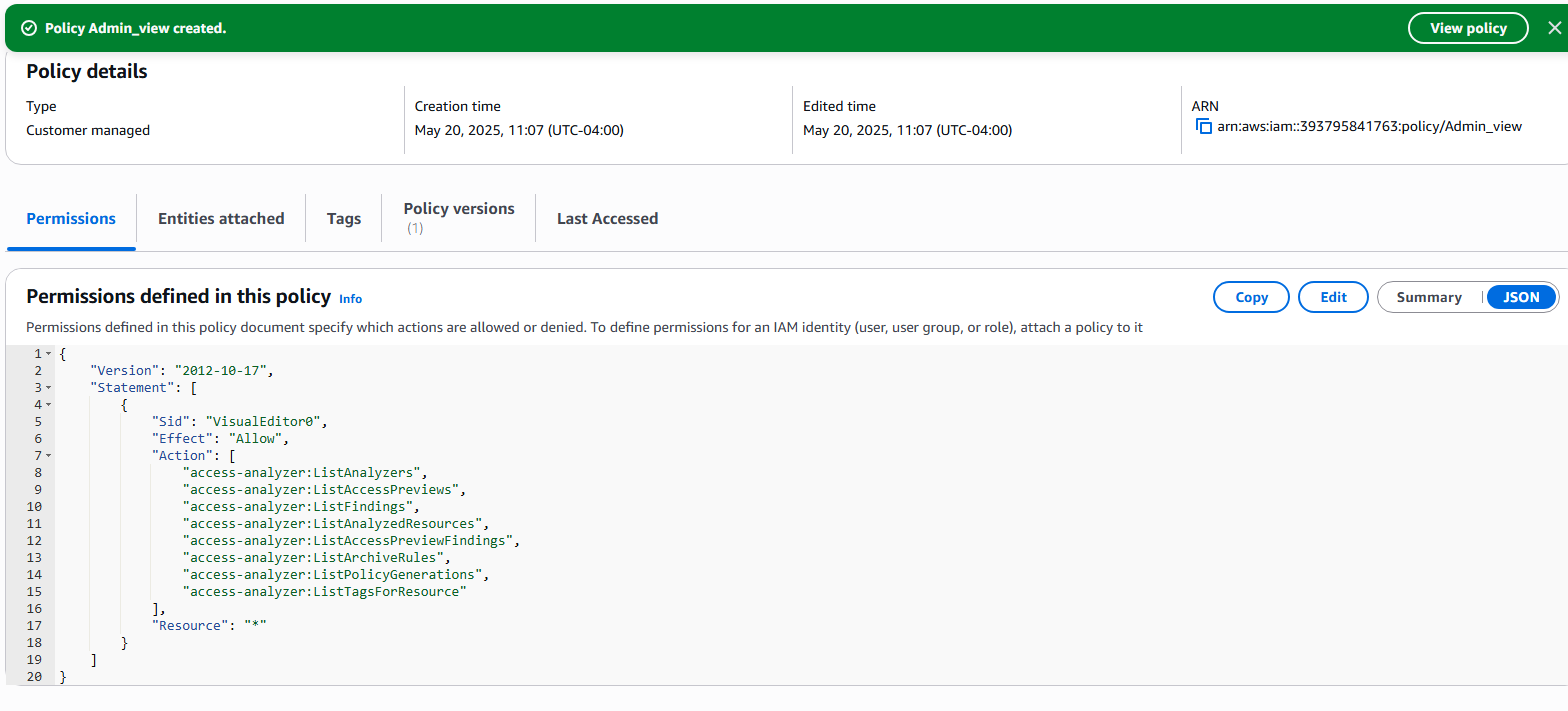
11. You will be brought back to the policy list page and can see your newly created policy.  Select the newly created policy ? JSON tab to view the code. 

12. Code for policy.   Admin_view will be displayed. 

13. Now we will create a new group with the policy of Admin_view.  On the left hand side of IAM menus select User Groups. 

14. Select Create group. 

15. On the create group page we are going to name the group “AdministrativeViewGroup”, select user “ljcatt_aws”, and policy “Admin_view”.  Than select button Create user group. 

16.  Now we have a new policy Admin_view in the group of AdministrativeViewGroup assigned to the user ljcatt_aws. 

Create AWS IAM Administrator Account outside of ROOT User

IAM (Identity and Access Managment)   is a global AWS Service which provides access for administrative and development functions in AWS.   We will demonstrate the creation of a user besides the ROOT user.

Points that should be remembered in AWS and IAM users and groups.

  • Root user should not be used except for setting up AWS and creation of Users and Groups. 
  • Users should correlate to unique individuals 
  • Groups are collections of like users 
  • Rights can be granted to both users and groups. 
  • Users can belong to multiple groups or no group at all. 
  • Groups cannot be assigned to other groups. 
  • IAM users and groups are global setting in AWS, they are not part of a region.  
  1. The following is required before you create IAM user for your AWS Free Tier Account. 
  • An Active AWS Account. 
    • An Active email to receive alerts. 
    • Access to the root user account. 

2. Logon to AWS as the root user at URL:  https://signin.aws.amazon.com/ 

3. Validate that you are not a robot. 

4. Enter your password. 

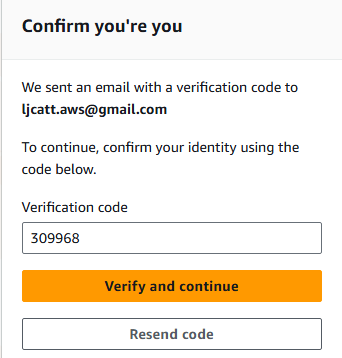
5. Open your email and retrieve the validation code. 

6. Enter your validation code. 

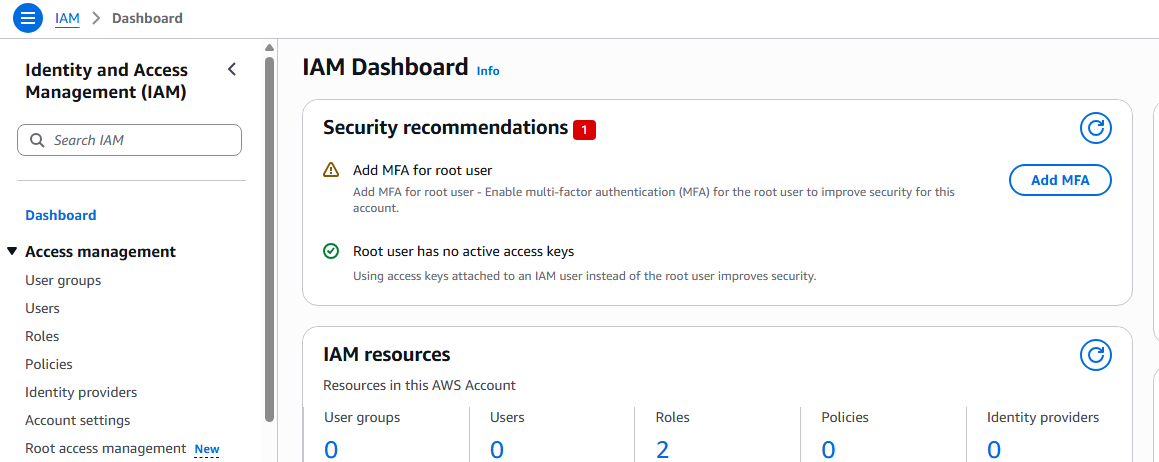
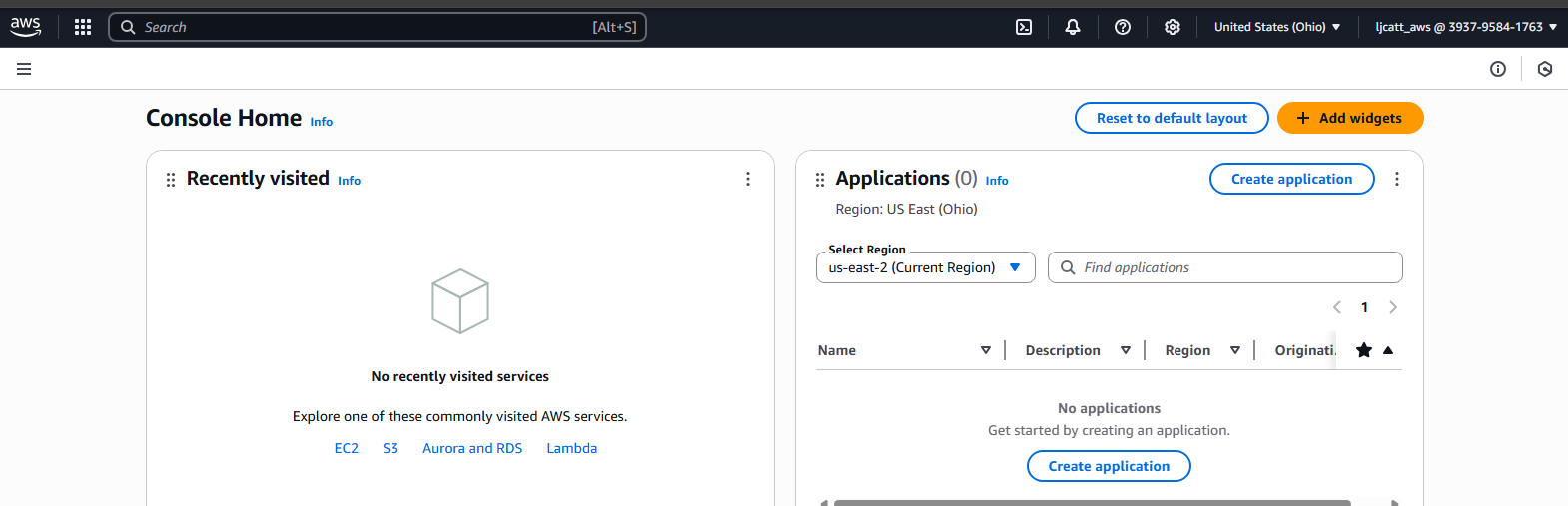
7. You will now have your AWS account console displayed. In the Search bar type IAM and a link to the IAM console will be displayed.  NOTE:  You can have a link created on your home page by clicking the star next to any resource in AWS. 

8. The IAM Console will now be displayed, select Users on the left hand menu selection. 

9. Currently we have no users other than root, which is not part of IAM.  Select Create User in the upper right hand side of screen. 

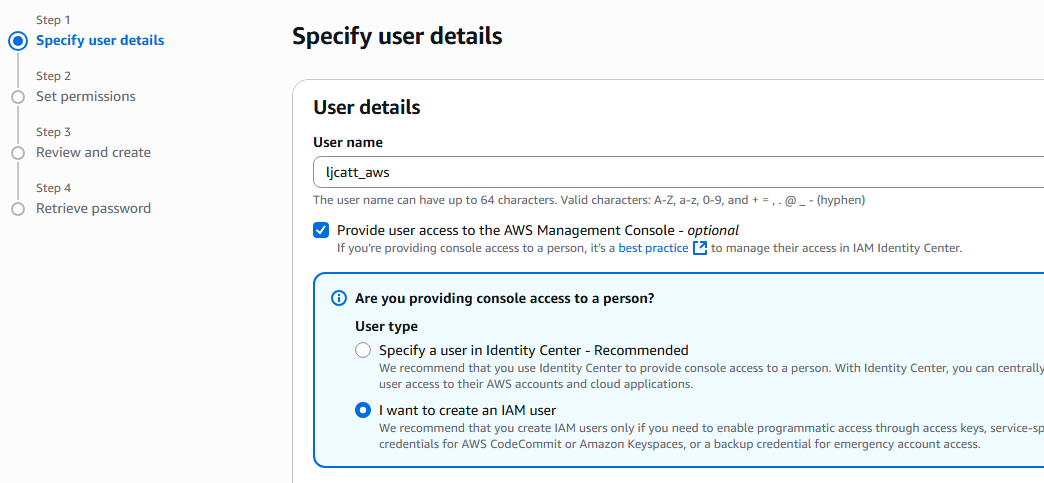
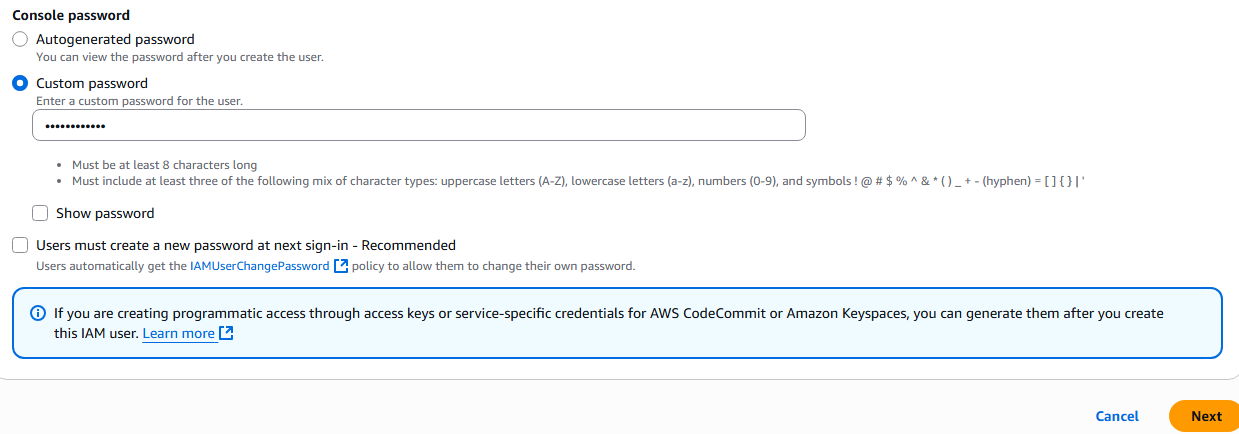
10.  You will be presented with a 4 step screen to create your new IAM user.  Enter a user name. Select IAM user, select custom password and enter a password, unselect change password at next logon.    NOTE:  When creating a user for another account ensure that you have the password generated for you and change password at next logon is selected. 

11. On the next step we will be granting permissions to the user.   Select create group in lower right hand side. 

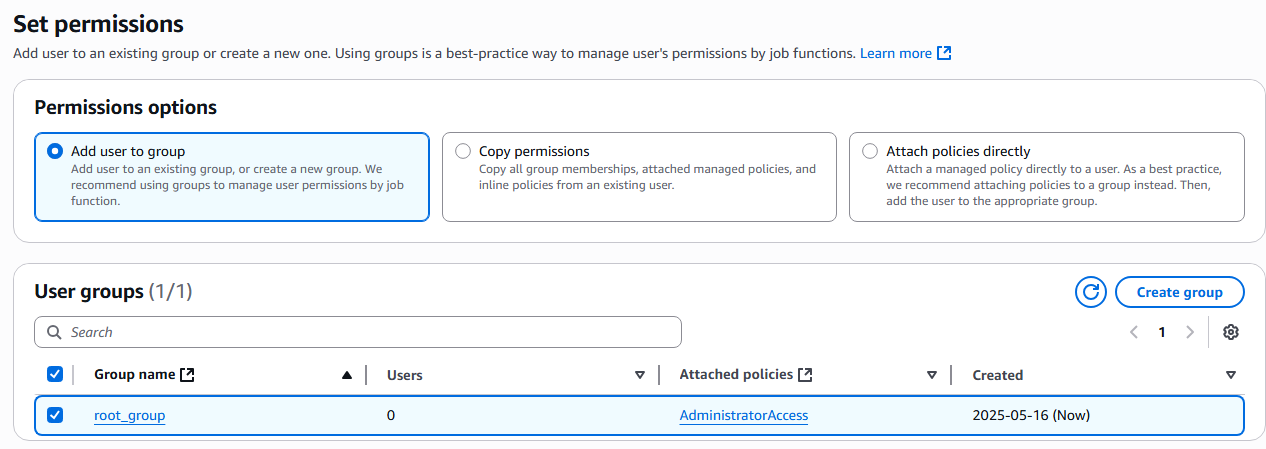
12.  We will enter “root_group” and select AdministratorAccess for permissions.  Select Create User Group. 

13. Now you will see a group available to access.   Select the root_group and press Next 

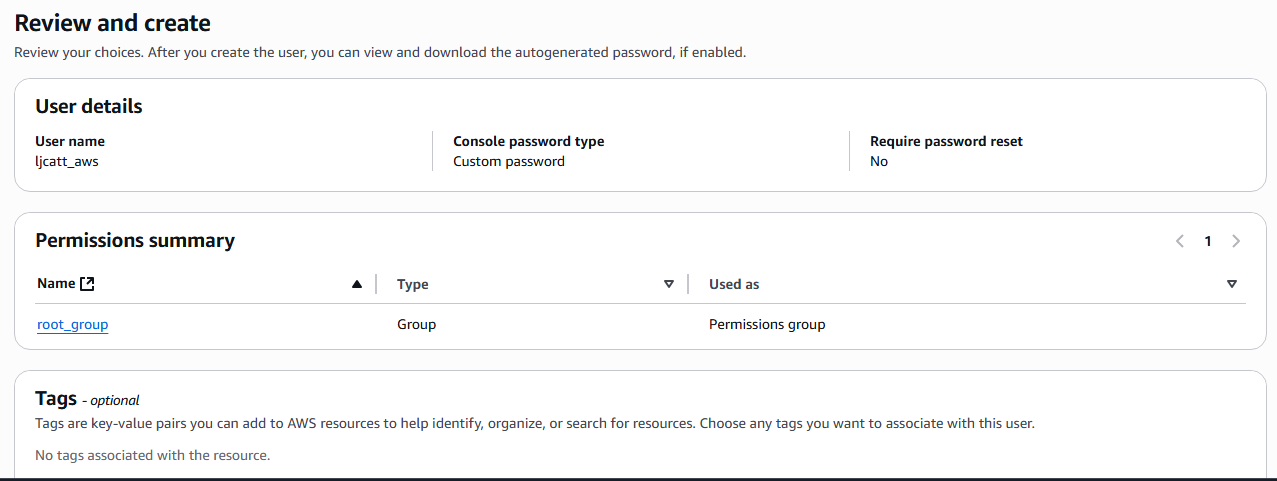
14. A Review page will be displayed and select Create user. 

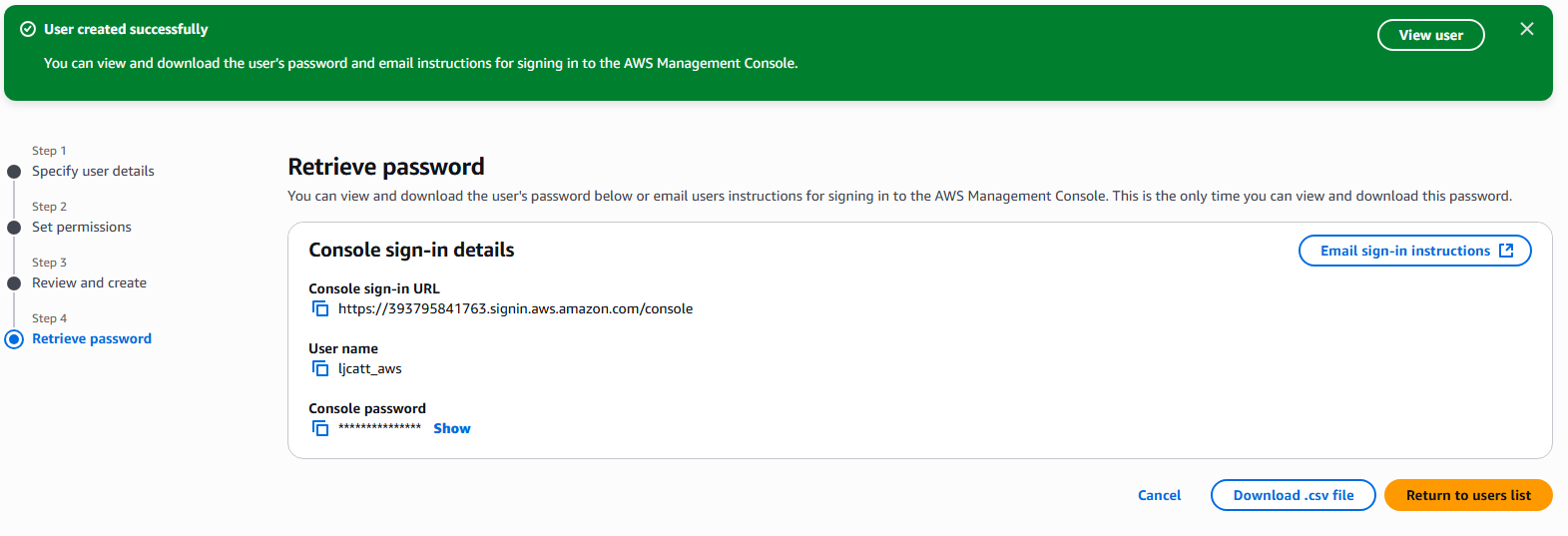
15. A Retrieve password Page will be displayed which allows you to download the credentials for the new account or email them to specific user.   Click Return to user list. 

16. A warning may appear about you saving the password.  Click continue. 

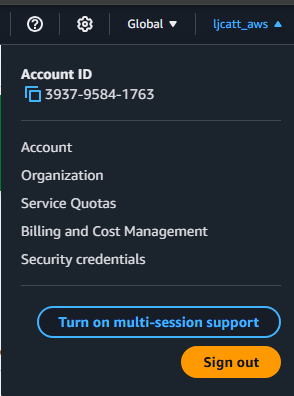
17. In the uppper right hand corner of you screen click on the user_id and select sign out.  NOTE: record the Account ID in this example it is 393795841763 

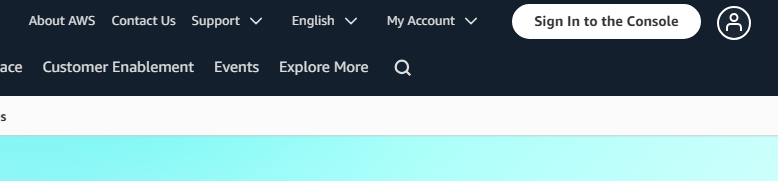
18. In the upper right hand side of the screen select Sign In to the console. 

19.  Enter the account ID, IAM username and password you just create.   Select Sign in. 

20.  You are now logon as your IAM user 

AWS Setting up Budget Alerts

Though we have  a Free Tier AWS Account, you do have access to all services within AWS.   A lot of these services are not available in the Free Tier, thus if used, you will receive a bill for services outside of the free tier.   To limit this charge we will show how to setup a budget alert, which will notify once you have crossed a certain charge.      We will setup three alerts in this lesson for the monitary amounts of $1.00, $3.00, and $5.00 dollars.

  1. The following is required before you create Budget Alerts for your AWS Free Tier Account. 
    • An Active AWS Account. 
      • An Active email to receive alerts. 
      • Access to the root user account. 


    2. Logon to you AWS account as the root user. 

    3. After you have logon, you will see your root user name in the upper right hand corner, click on your user name and select “Billing and Cost Management” 

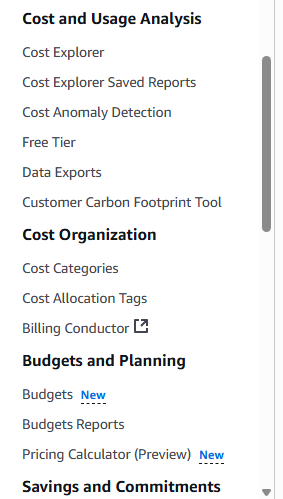
      4. In the Billing and Cost Management Console, left and side scroll down to Budgets and select. 

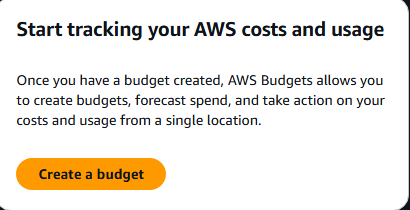
        5. Select the create budget operation button. 

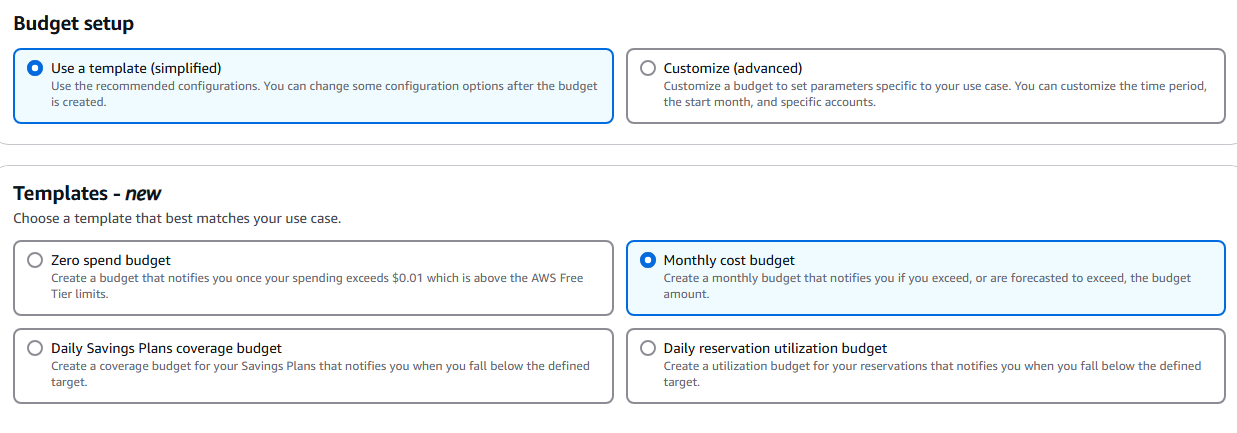
          6. Select “Use a template” and “Monthly cost budget” 

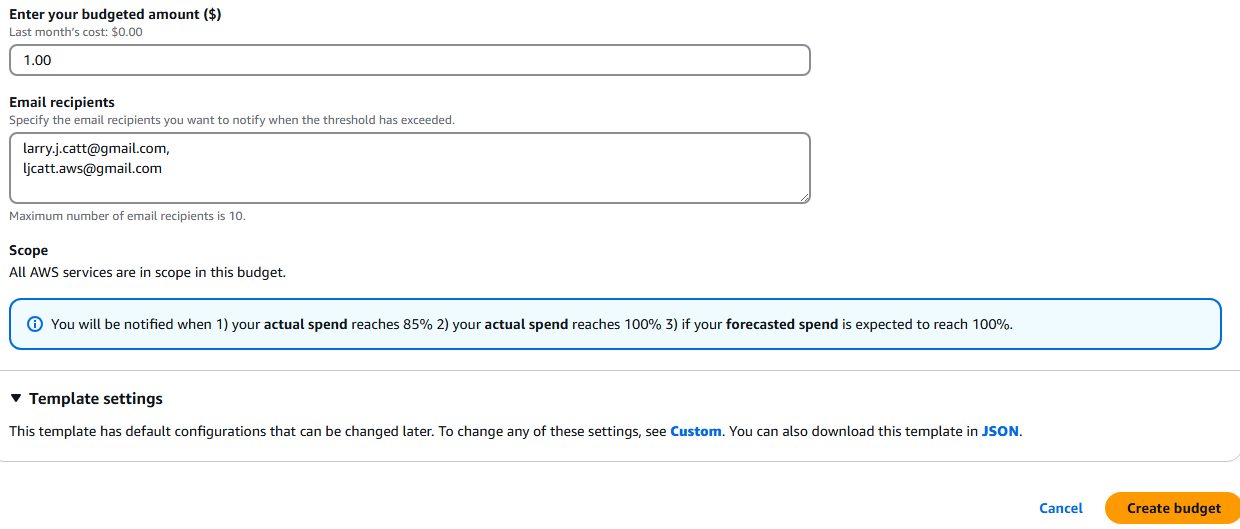
            7. Enter the budgeted amount in US dollars, emails which you want to receive notifications, and select Create Budget. 

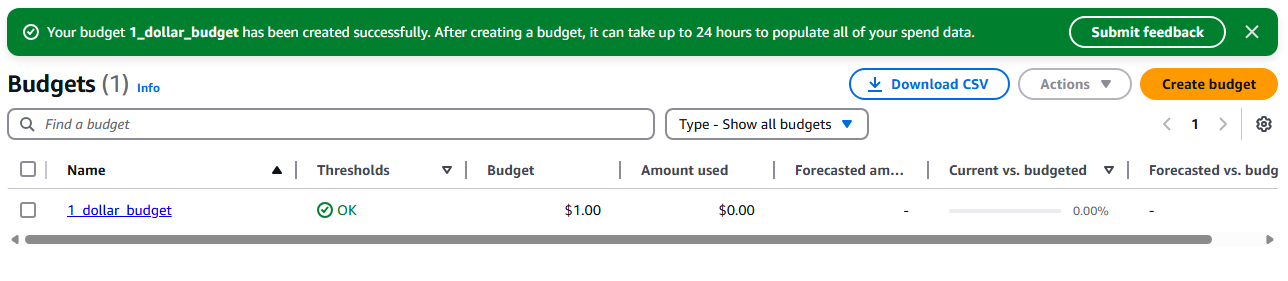
              8. You will receive a page with your current budgets created. 

                9. Repeat steps 6 – 8 for the $3.00 and $5.00 budgets. 

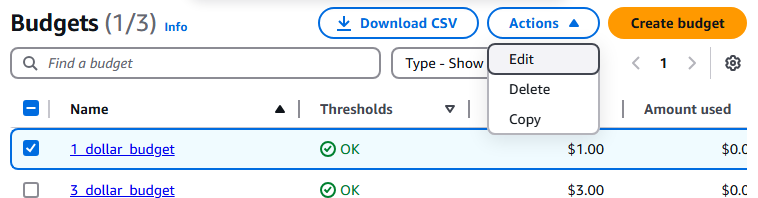
                10. The final budget alerts you have are listed below. 

                  11. You can customize a budget by check marking the budge ? selecting actions ? edit 

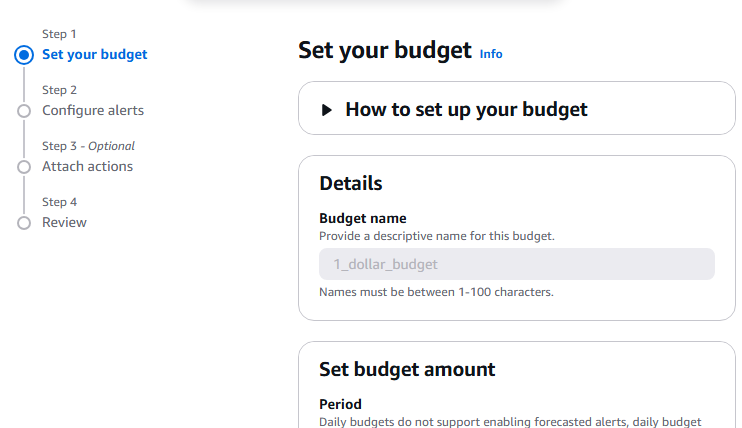
                    12. The first page of the edit funtion will allow you to change: The Period of time, Recurring or expiring, Budget method, Budget amount, Budget Scope, Blended budge, Tags (Alternate name).  Select the next button. 

                      13. Second page allows you to further refine the budget alerts, click the Next button 

                      14. Third page allows you to add actions to IAM Permissions roles for normal users. Select next. 

                      15. Finally review your changes to the budget and Select Save. 

                      16. This completes setup of budget alerts. 

                      Create a AWS Free Tier Account


                      AWS allows developers and administrators to create a free account to test and evaluate the AWS enterprise offering. Please Note: AWS Free Tier Accounts do not restrict your ability to access any of the paid only services in AWS, thus ensure that all components you access are indeed part of the free tier to avoid costs.

                      1. The following is required for creation of a free tier:

                      – Active email account

                      – Cell phone that can receive SMS messages

                      – Credit Card number for charges outside the free tier.

                      1. Open a browser and navigate to the URL.

                      https://signin.aws.amazon.com/signup?request_type=register

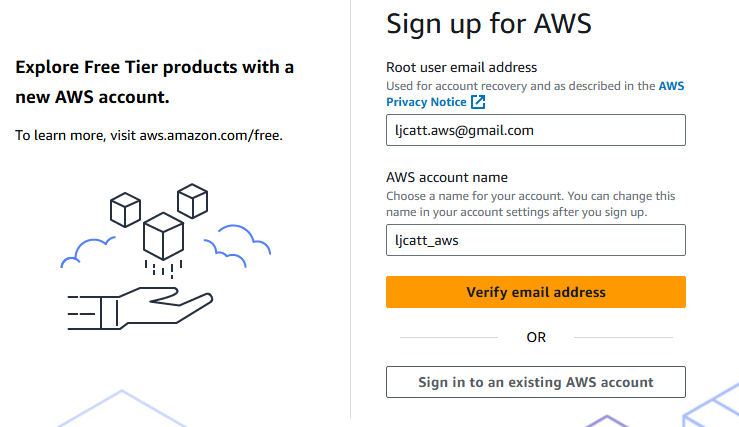
                      1. Enter the email you have chosen to use and an account name then press Verify email address.
                      1. Validate that you are not a machine and select submit.
                      1. Go to your email and select email sent.
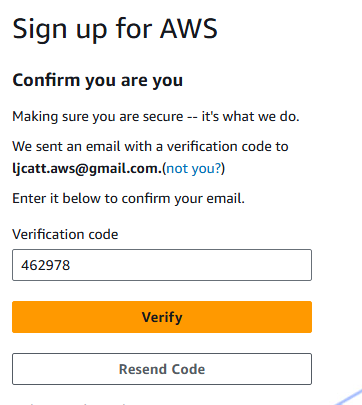
                      1. Enter the code and select Verify
                      1. Once email has been verified enter the password for you root user and select Continue.
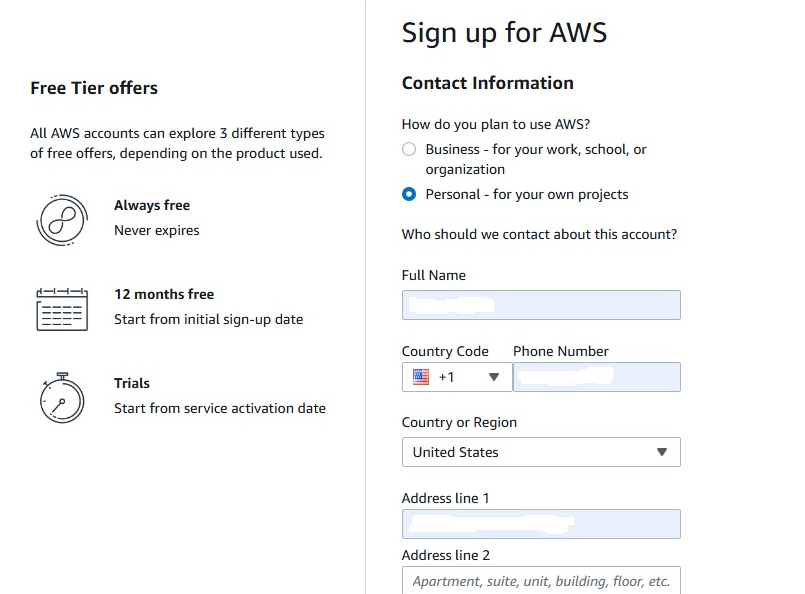
                      1. On the next page Select Personal account, enter your information and check box the agreement. Finally select agree and continue button.
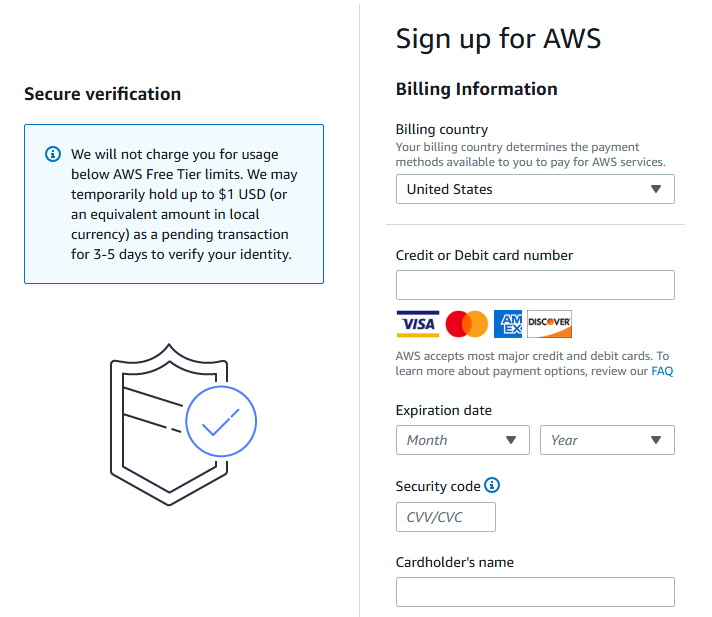
                      1. Enter your payment data and continue.
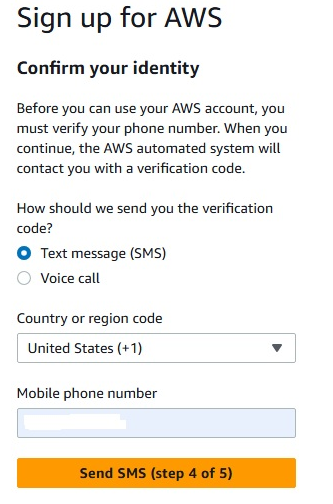
                      1. Enter your phone number on the next page to confirm your identity.
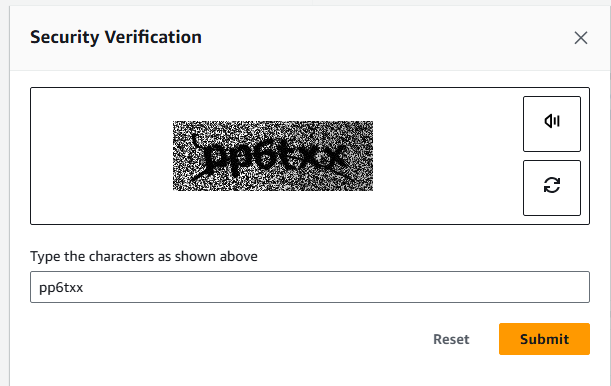
                      1. Verify your not a computer again.
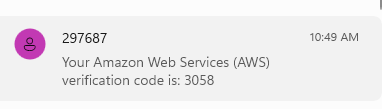
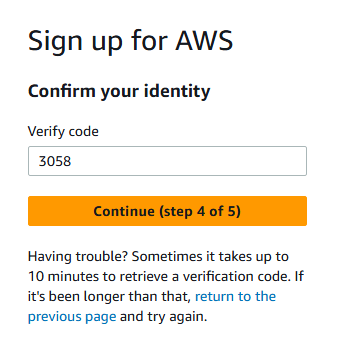
                      1. Retrieve your code from the SMS cell phone
                      1. Enter code sent to SMS service and select Continue.
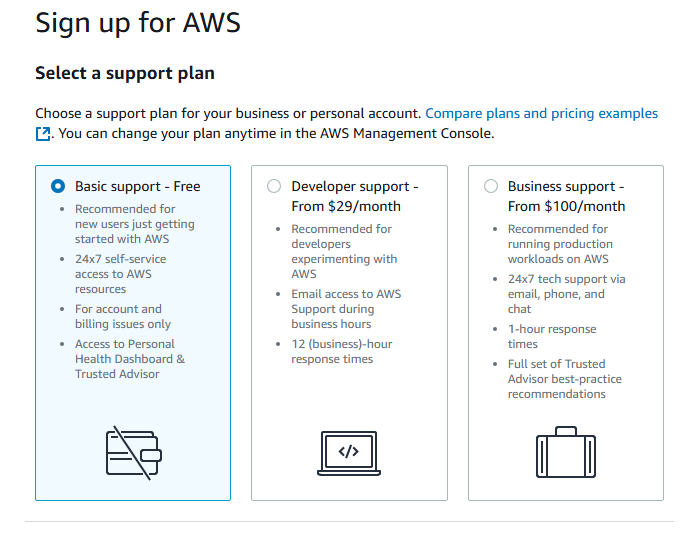
                      1. Select Basic support – Free Tier and select Complete Signup
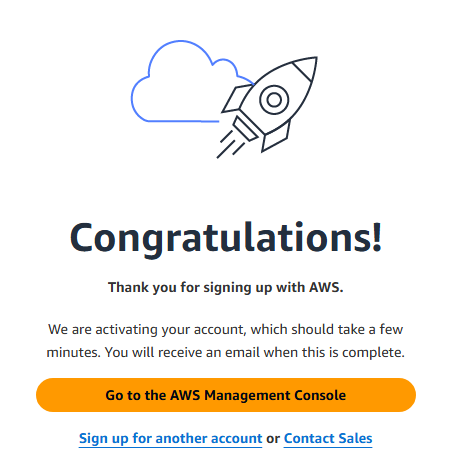
                      1. Finally, you will be brought into the system, select Go to the AWS Management Console.
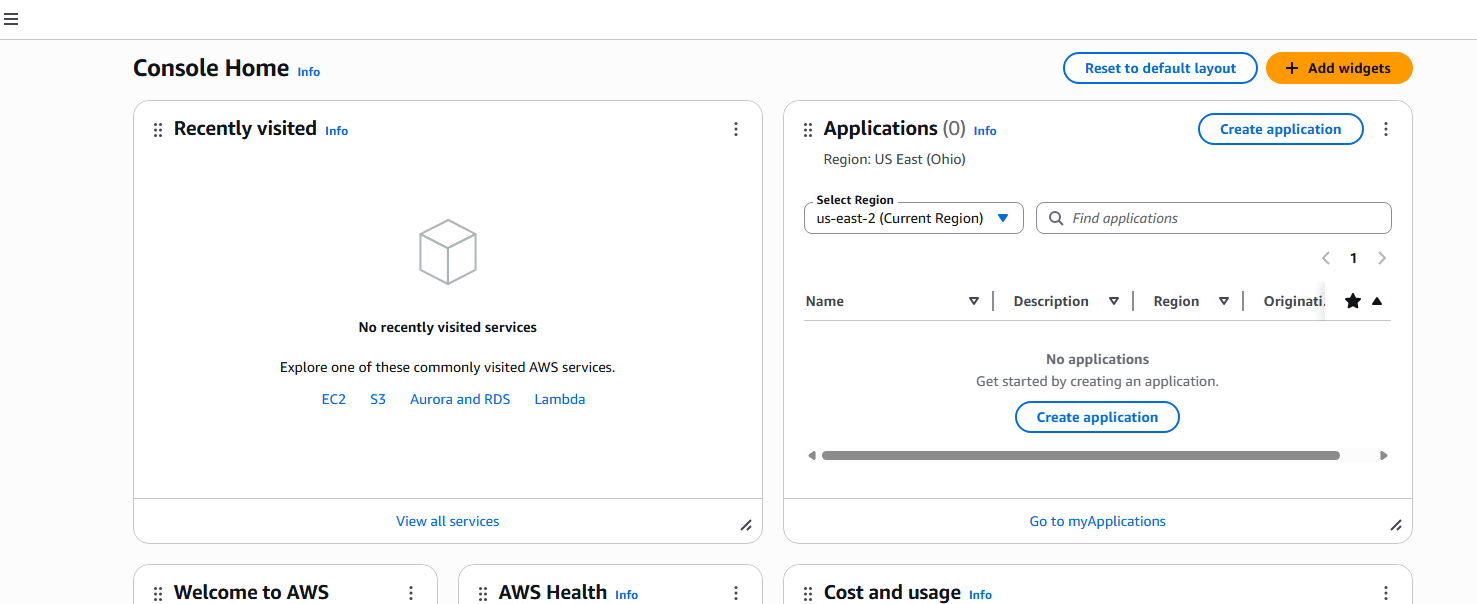
                      1. Below is the starting AWS Management Console.
                      1. The first two steps in new account is to setup billing alerts and define user beside the root user for administration.

                      TMUX Screen Utility for UNIX/Linux

                      The screen utility in Unix/linux has been replaced by the tmux utility as of Release 9. Thus, to have a persistent connection while executing system process such as installation, you will have to migrate to the new tmux utility. In this article we will show the installation of the tmux utility into a linux environment and the general use of tmux.

                      Installation

                      The tmux utility is located in the majority of OS repositories and can be retrieved using the dnf command as the root user:

                      [oracle@localhost test]$ su 
                      Password: 
                      [root@localhost test]# /usr/bin/dnf install tmux
                      
                      [root@localhost bin]# /usr/bin/dnf install tmux
                      Last metadata expiration check: 0:29:38 ago on Wed 19 Mar 2025 05:23:15 PM UTC.
                      Dependencies resolved.
                      ===================================================================================================================================================================================================================
                       Package                                       Architecture                                    Version                                            Repository                                                  Size
                      ===================================================================================================================================================================================================================
                      Installing:
                       tmux                                          x86_64                                          2.7-3.el8                                          ol8_baseos_latest                                          316 k
                      
                      Transaction Summary
                      ===================================================================================================================================================================================================================
                      Install  1 Package
                      
                      Total download size: 316 k
                      Installed size: 726 k
                      Is this ok [y/N]: y
                      Downloading Packages:
                      tmux-2.7-3.el8.x86_64.rpm                                                                                                                                                          712 kB/s | 316 kB     00:00    
                      -------------------------------------------------------------------------------------------------------------------------------------------------------------------------------------------------------------------
                      Total                                                                                                                                                                              698 kB/s | 316 kB     00:00     
                      Running transaction check
                      Transaction check succeeded.
                      Running transaction test
                      Transaction test succeeded.
                      Running transaction
                        Preparing        :                                                                                                                                                                                           1/1 
                        Installing       : tmux-2.7-3.el8.x86_64                                                                                                                                                                     1/1 
                        Running scriptlet: tmux-2.7-3.el8.x86_64                                                                                                                                                                     1/1 
                        Verifying        : tmux-2.7-3.el8.x86_64                                                                                                                                                                     1/1 
                      
                      Installed:
                        tmux-2.7-3.el8.x86_64                                                                                                                                                                                            
                      
                      Complete!
                      [root@localhost bin]# 

                      You can view the full usage and instruction by accessing the man page for tmux.

                      # usage of tmux
                      
                      man tmux

                      To create a new tmux session simple use the new clause and -s tag to name your session

                      # creating tmux socket session test1
                      
                      tmux new -s test1

                      To execute your active tmux session without closing, user Ctrl-b d

                      # exit active tmux socket session from within the current session
                      
                      Ctrl-b d

                      Create an additional tmux session and exit the session.

                      # creating tmux socket session test2
                      
                      tmux new -s test2
                      Ctrl-b d
                      

                      To list all existing tmux sessions use the command: tmux list-sessions

                      # listing active tmux socket sessions
                      
                      tmux list-sessions
                      
                      [root@localhost bin]# tmux list-sessions
                      test1: 1 windows (created Wed Nov 2 15:39:47 2022) [211x58]
                      test2: 1 windows (created Wed Nov 2 15:41:45 2022) [211x58]
                      [root@localhost bin]#

                      To re-attach to tmux session use the command: tmux a -t test2

                      # attach to test2 session
                      
                      tmux a -t test2
                      

                      To kill a tmux session user the command: tmux kill-ses -t test2

                      # kill session test2
                      
                      [root@localhost bin]# tmux kill-ses -t test2
                      [root@localhost bin]# tmux list-sessions
                      test1: 1 windows (created Wed Nov 2 15:39:47 2022) [211x58]
                      [root@localhost bin]# 

                      Check patch level of Oracle RDBMS from OS

                      Most software only have a single patch process to update the software, however relational databases are a bit different.  You have both a binary set of files for the software and the internal configuration and objects within the database itself.   Thus, it is necessary to validate data both patch levels at the OS level and database level.   Mismatch patches at this level can cause significant errors during operations. 
                      
                      Check Oracle Patch level at OS
                      
                      To see the binary level patching of the Oracle software packages,  you have to use the opatch utility to see the internal entries in oraInventory directory.  Use the following opatch command to view your oraInventory. 


                      /code
                      
                      opatch lsinventory
                      
                      sun1{orcl}-~> opatch lsinventory
                      Oracle Interim Patch Installer version 12.2.0.1.23
                      Copyright (c) 2021, Oracle Corporation.  All rights reserved.
                      
                      
                      Oracle Home       : /oracle/product/12.2.0/db_home1
                      Central Inventory : /oracle/oraInventory
                         from           : /oracle/product/12.2.0/db_home1/oraInst.loc
                      OPatch version    : 12.2.0.1.23
                      OUI version       : 12.2.0.1.4
                      Log file location : /oracle/product/12.2.0/db_home1/cfgtoollogs/opatch/opatch2021-08-18_08-31-56AM_1.log
                      
                      Lsinventory Output file location : /oracle/product/12.2.0/db_home1/cfgtoollogs/opatch/lsinv/lsinventory2021-08-18_08-31-56AM.txt
                      --------------------------------------------------------------------------------
                      Local Machine Information::
                      Hostname: sun1.testdomain.com
                      ARU platform id: 23
                      ARU platform description:: Solaris Operating System (SPARC 64-bit)
                      
                      
                      Installed Top-level Products (1):
                      
                      Oracle Database 12c                                                  12.2.0.1.0
                      There are 1 products installed in this Oracle Home.
                      
                      
                      Interim patches (3) :
                      
                      Patch  32473172     : applied on Fri Jun 04 12:55:51 EDT 2021
                      Unique Patch ID:  24158925
                      Patch description:  "OJVM RELEASE UPDATE 12.2.0.1.210420 (32473172)"
                         Created on 1 Apr 2021, 09:12:15 hrs UTC
                         Bugs fixed:
                           25811105, 25890046, 26023042, 26570134, 27000702, 27461740, 27952586
                           27642235, 27539876, 28502098, 28915870, 29254623, 29774362, 30160625
                           30534662, 30855101, 31306261, 26716835, 31668872, 29224710, 28394726
                           24817447, 32165759, 31997805, 26451793, 32523206, 29415774
                      
                      Patch  32692908     : applied on Fri Jun 04 12:50:09 EDT 2021
                      Unique Patch ID:  24229706
                         Created on 13 May 2021, 11:26:43 hrs PST8PDT
                         Bugs fixed:
                           29839481, 31193511
                         This patch overlays patches:
                           32507738
                         This patch needs patches:
                           32507738
                         as prerequisites
                      
                      Patch  32507738     : applied on Fri Jun 04 12:46:30 EDT 2021
                      Unique Patch ID:  24169281
                      Patch description:  "Database Apr 2021 Release Update : 12.2.0.1.210420 (32507738)"
                         Created on 9 Apr 2021, 05:33:05 hrs UTC
                         Bugs fixed:
                           7391838, 8480838, 8932139, 8975044, 12763598, 13554903, 14221306
                           14690846, 15931756, 16002385, 16438495, 16727454, 16942578, 17027695
                           17533661, 17947871, 17958365, 18308268, 18521691, 18594510, 18774543
                           18878420, 18986501, 19072655, 19211433, 19285025, 19327292, 19526548
                           19614243, 19647894

                      Oracle Patch Level in Database


                      Most software only have a single patch process to update the software, however relational databases are a bit different.  You have both a binary set of files for the software and the internal configuration and objects within the database itself.   Thus, it is necessary to validate data both patch levels at the OS level and database level.   Mismatch patches at this level can cause significant errors during operations. 
                      
                      
                      To see the patch level of the internal database libraries you have to query the data dictionary view “dba_registry_sqlpatch”.    Connect to one of the databases you have in your current server using sqlplus and execute the below query.
                      
                      
                      column action_time format a28
                      column action format a8
                      column version format a8
                      column comments format a30
                      column status format a10
                      set line 200 pages 500
                      select patch_id,  version, status, Action,Action_time from dba_registry_sqlpatch order by action_time desc;


                      orcl (SYS)> column action_time format a28
                      column action format a8
                      column version format a8
                      column comments format a30
                      column status format a10
                      set line 200 pages 500
                      select patch_id,  version, status, Action,Action_time from dba_registry_sqlpatch order by action_time desc;orcl (SYS)> orcl (SYS)> orcl (SYS)> orcl (SYS)> orcl (SYS)> orcl (SYS)>
                      
                        PATCH_ID VERSION  STATUS     ACTION   ACTION_TIME
                      ---------- -------- ---------- -------- ----------------------------
                        32228578 12.2.0.1 SUCCESS    APPLY    19-MAY-21 02.53.44.053902 PM
                        32119931 12.2.0.1 SUCCESS    APPLY    19-MAY-21 02.53.43.930720 PM
                        31668898 12.2.0.1 SUCCESS    ROLLBACK 19-MAY-21 02.53.43.919599 PM
                        31741641 12.2.0.1 SUCCESS    APPLY    01-DEC-20 08.50.09.424579 PM


                      Removing all files older then X days

                      Log files and output files are automatically generated by applications continuesly. So you will likely have thousands after a few days or weeks of operation. There are multiple ways to remove these older files, but we will demonstrate a simple bash command of

                      find ./* -mtime +<days> -exec rm {} \;

                      # Remove files older then 30 days
                      
                      find ./* -mtime +30 -exec rm {} \;
                      # Remove files older then 7 days
                      
                      find ./* -mtime +7 -exec rm {} \;
                      # Remove files older then 1 hour
                      
                      find ./* -mtime +1/24 -exec rm {} \;

                      Oracle rebuilding Database Links

                      Database links create a connection from one database to another within Oracle and to third party database objects. There are time such as a clone process or movement of data sets to new servers, which may require the rebuilding of database links. The Below sql script will generate a schell script db_links.sh from the originating database which can be executed in newly created database. NOTE: If you are replacing a test database with production data set, you would first execute below script on you test database, perform your clone/replacement procedure, and finally execute the db_links.sh file generated.

                      -- rebuild_db_links.sql
                      -- 
                      -- Date:  12-1-2018
                      -- By: Larry Catt
                      -- Modified:  12-1-2018
                      -- Rebuilds database links from within an oracle, generating file db_links.sh 
                      -- which must be launched as the oracle software owner.
                      --
                      
                      
                      spool db_links.sh
                      set serveroutput on
                      declare 
                      v_txt varchar2(4000);
                      begin
                      for rec in(select * from dba_db_links 
                      where owner not in('SYS','PUBLIC'))
                      loop
                      dbms_output.put_line('sqlplus / as sysdba <<EOF');
                      dbms_output.put_line('@conn '||rec.owner);
                      dbms_output.put_line('drop database link '||rec.db_link||';');
                      dbms_output.put_line(chr(10));
                      select dbms_metadata.get_ddl('DB_LINK',rec.db_link,rec.owner) into v_txt from dual;
                      dbms_output.put_line(v_txt||';');
                      dbms_output.put_line('EOF');
                      dbms_output.put_line(chr(10));
                      end loop;
                      --PUBLIC
                      for rec in(select * from dba_db_links  
                      where owner='PUBLIC')
                      loop
                      dbms_output.put_line('sqlplus / as sysdba <<EOF');
                      dbms_output.put_line('drop public database link '||rec.db_link||';');
                      dbms_output.put_line(chr(10));
                      select dbms_metadata.get_ddl('DB_LINK',rec.db_link,rec.owner) into v_txt from dual;
                      dbms_output.put_line(v_txt||';');
                      dbms_output.put_line('EOF');
                      dbms_output.put_line(chr(10));
                      end loop;
                      --SYS
                      for rec in(select * from dba_db_links  
                      where owner='SYS')
                      loop
                      dbms_output.put_line('sqlplus / as sysdba <<EOF');
                      dbms_output.put_line('drop database link '||rec.db_link||';');
                      dbms_output.put_line(chr(10));
                      select dbms_metadata.get_ddl('DB_LINK',rec.db_link,rec.owner) into v_txt from dual;
                      dbms_output.put_line(v_txt||';');
                      dbms_output.put_line('EOF');
                      dbms_output.put_line(chr(10));
                      end loop;
                      end;
                      /
                      spool off