Category Archives: AWS

AWS Elastic IP configuration

AWS offers Elastic IP which are owned by the customer and can be assigned to any EC2 Instance the customer desires.   A single Elastic IP can only be assigned to a single EC2 Instance at any given time, it will be owned by a single customer until deleted regardless of use.  This instruction set will run through the creation of an Elastic IP in your AWS environment and assigning it to a single EC2 Instance.

1.  The following is required before you create IAM user for your AWS Free Tier Account.

  -An Active AWS Account with admin level permissions.

  -Active EC2 Instance

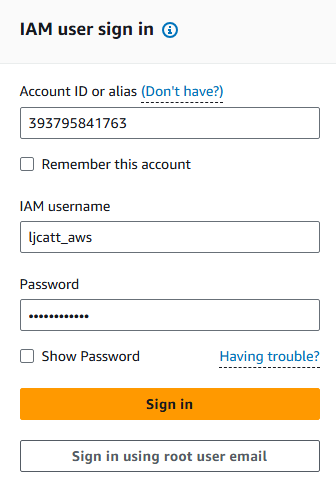
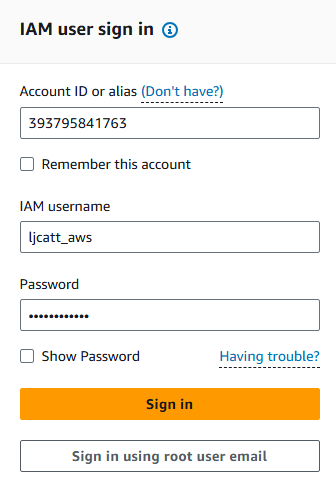
2.  Logon to AWS as an IAM user at URL:  https://signin.aws.amazon.com/
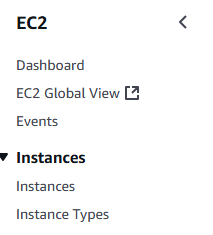
3.  From the Home Console type EC2 in the search bar, select the star next to EC2, and select EC2

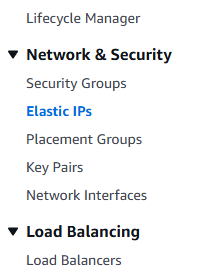
4.  On the right hand menu bar select Elastic IPs.
5.  Currently we have no Elastic IP address allocated to our AWS account, select Allocate Elastic IP address on the right hand side of the screen.

6.  You have 4 choices for allocating a Elastic IP address in AWS.

  • From a pool of AWS public IP (cost is approx. $0.005 per hour regardless of use).
  • Public IP address you are bring to AWS.
  • Pool of public IP addresses you have already brought to AWS
  • IP address using IMAP (Normally disabled for EC2)
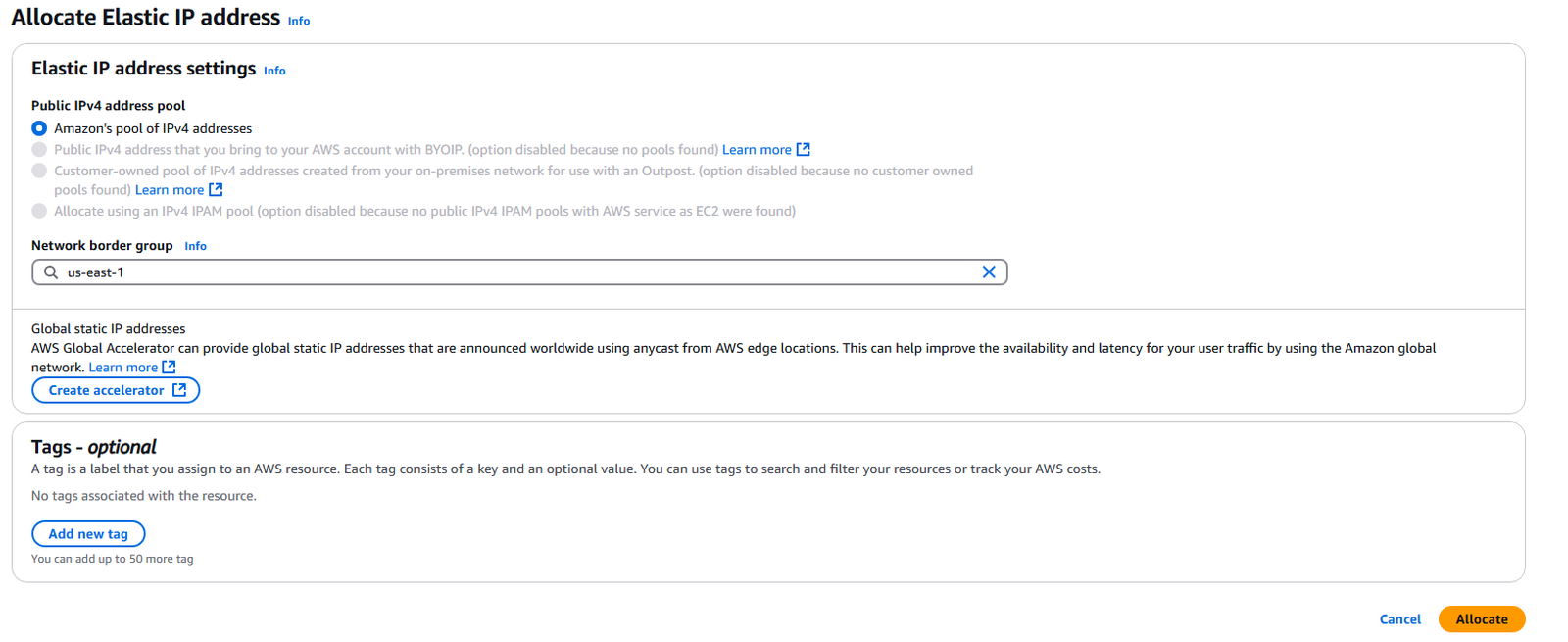
7.  Select the Network border group closes to the EC2 Instance you desire to assign the IP to.  In this example us-east-1.   Leave Create accelerator alone and add optional tag to your Elastic IP. Next click Allocate.

8.  You will see the new IP allocated to your AWS account.

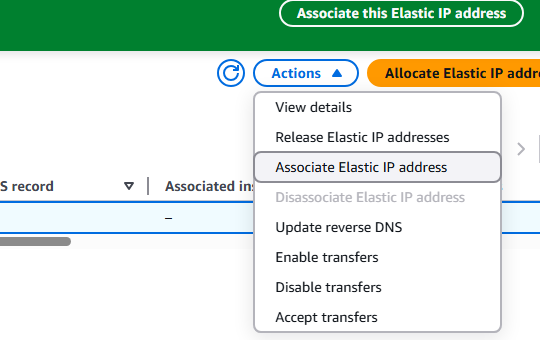
9.  To assign your Elastic IP address to an EC2 Instance,  Select the Elastic IP address with a checkmark on the far left hand side ? Click Actions ? Associate Elastic IP Address
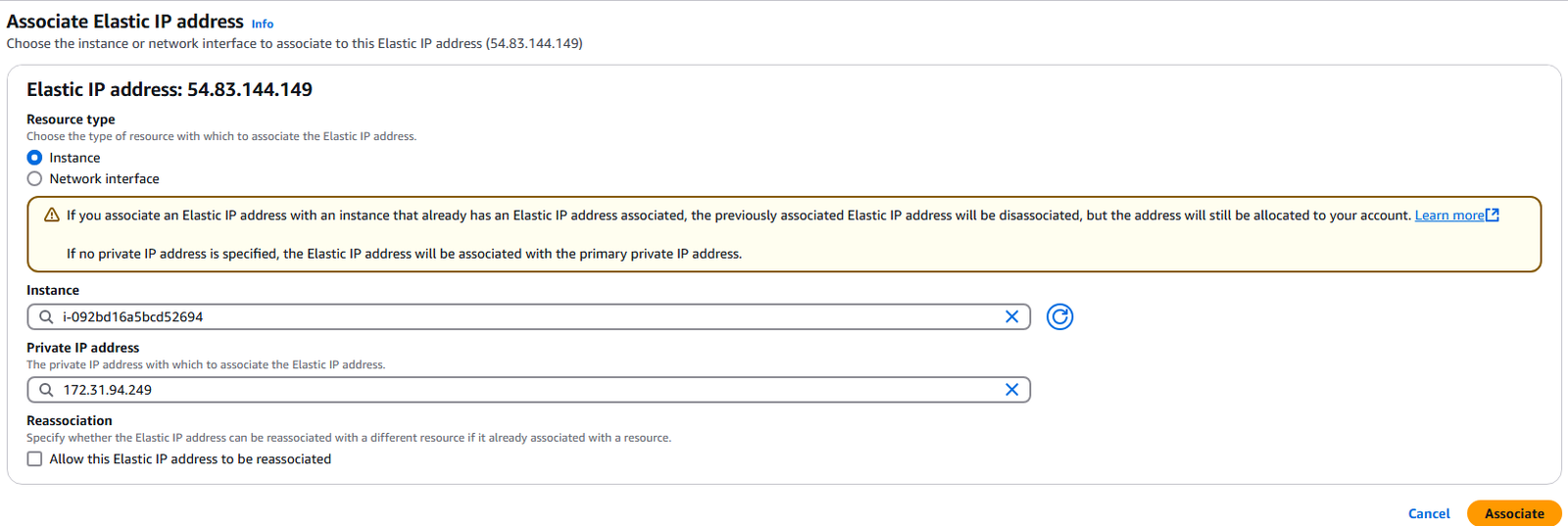
 10.  Select Instance for association, enter the Instance ID and Private IP for the Instance and select Associate.
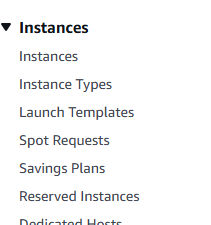
11.  Now select Instances from your left hand menu bar.
12.  Select the instance you choose above for the Elastic IP and you will see that it is allocated to the instance, even though the instance is currently stopped.

13.  You can disassociate the Elastic IP by going back to Elastic Ips screen Selecting the IP ? Actions-? Disassociate Elastic IP address.
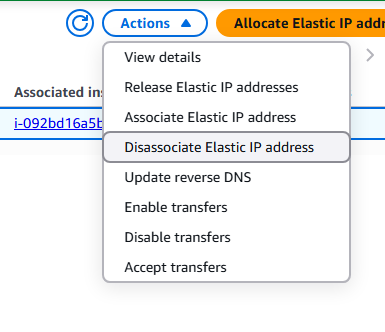
14.  Confirm the Disassociation of the IP from the EC2 Instance by clicking Disassociate.
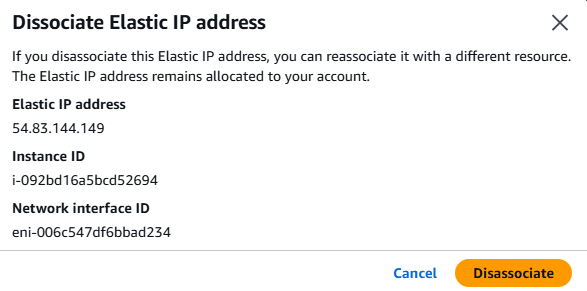
15.   You can remove, delete or terminate an Elastic IP from your account by selecting the Elastic IP from the list with a check mark ? Actions ? Release Elastic IP Address.
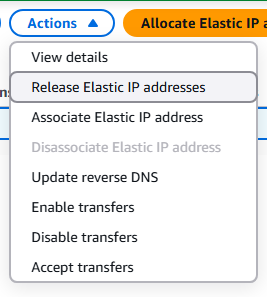
16.   Confirm the Release, by selecting the Release button
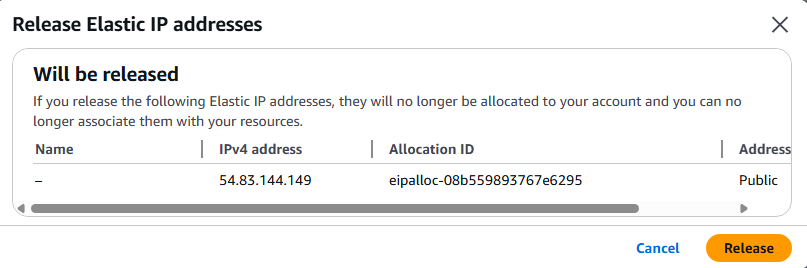
17.   You will see a confirmation of the released Elastic IP and it will be removed from the available list.

18.   This completes the Creation, Allocation, Reallocation, and Deletion of Elastic IPs in AWS.
AWS Public vs Private vs Elastic IP Defined

A summary of the differences between Public vs Private  vs Elastic IP in a AWS environment.

Public IPs:

        1.  IP assigned to one Machine and is routable on the internet.

        2.  IP is unique and never duplicated at the same time.

        3.  Can easily be geographically located.

Private IPs

        1.  IP only identifiable on private network.

        2.  IPs unique on single private network but can be duplicated on another.

        3.  IP must go through internet gateway as a proxy to access internet.

        4.  IP is that can be used are specified in a range.

Elastic IPs

        1.  Stopping and Starting an EC2 Instance, public IP can change.

        2.  To get a stable IP for EC2 Instance, you have to request an Elastic IP

        3.  Elastic IP is a public IPv4 address you own until deleted.

        4.  Elastic IP can only be attached to single EC2 Instance at a time.

        5.  Elastic IP allow you to mask Instance failure with rapid remapping to another Instance.

EC2 Instances by default come with:

        1.  One Private IP Address for internal AWS network.

        2.  One Public IP for internet.

        3.  SSH must use the public IP because it is assumed you are on outside network.

        4.  Starting and Stopping can cause the Public IP to Change.

  •  

AWS Spot Request

1.   The following is required before you create IAM user for your AWS Free Tier Account.

                -An Active AWS Account with admin level permissions.

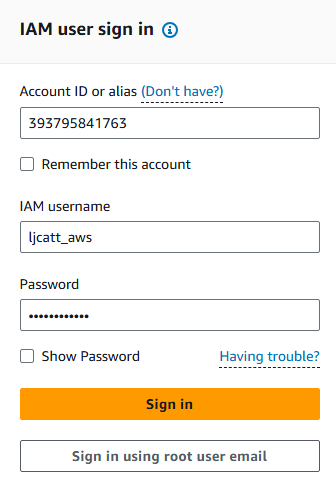
2.   Logon to AWS as an IAM user at URL:  https://signin.aws.amazon.com/

3.   From the Home Console type EC2 in the search bar, select the star next to EC2, and select EC2

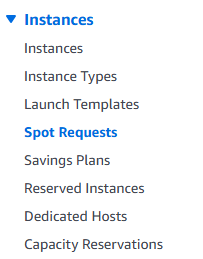
4.   Scroll down on right hand menu bar select Spot Request.

5.   We can view the Pricing history for spot instances, by clicking Pricing history button.   This will allow you to see the saving you could obtain by choosing a spot instance over an on-demand instance.

6.   Click on Create Spot Fleet request button to submit a request.

7.   Complete the following request and select Launch for AWS to start processing your request.

8.   Note:  At the bottom gives you a summary of the hourly cost of this spot request.

9.   To simply request a single spot instance you place the request under Instance Create-? Advance options.

AWS Spot Instances and Spot Fleet

Spot Instances are the cheapest available resource on AWS, but they are not guaranteed to be available and may become unavailable while the instance is running. So spot instances are effective at decreasing the overall cost by as much as 90% compared to On-demand, but are not suitable for required computer services. The following are specification of Spot Instances.

1. Can reduce cost up to 90% compared to On-demand

2. Hourly spot prices for service change continuously

3. You can set a max spot price you are willing to pay

a. If the max spot price you defined is exceeded, you have a 2 minute grace period

b. You must decide to either stop or terminate your instance

4. You have an option for a Spot Block

a. Guarantees no interruptions from 1 to 6 hours of time

b. Spot Blocks were supported after 31 Dec 2022

Placing Spot Requests – Request for spot resources, that contains:

1. Max Price

2. Desired number of instances

3. Launch specifications

4. Request type: one-time or persistent

a. one-time is removed once request is complete

b. persistent will become request again once it is stopped or terminated

5. Valid start time and stop time

Spot Requests Specifics:

1. Request is made and AWS attempts to fill request.

2. You can only cancel while in open, active, or disabled states.

3. You have to cancel spot request and terminate any instances created by the request. In this order

4. Canceling spot requests does not terminate running instances.

Spot Fleet – is a set of spot instance + optional on-demand instances.

1. Spot Fleet will try to fill the target resources with the price set by customer.

2. AWS will take available pools of varing instance type, OS, and Availability Zones to attempt to meet request.

3. You can have multiple launch pools the fleet can choose from.

4. Spot fleet stops launching instances when capacity or max price is reached.

5. Spot Fleets allow us to automatically request spot instances with the lowest price.

Strategies in Spot Fleet

1. LowestPrice – from pools with lowest cost.

2. Diversified – Distribute across all available pools.

3. CapacityOptimized – From pools with optimal capacity for number of instances.

4. PriceCapacityOptimized – this is the recommended approach. Select from the pools with highest capacity avaiblable and then the lowest price.

AWS EC2 Instance Connect

AWS Instance Connect is an alternative to the SSH connection into your EC2 Instances.  This allows you to do a browser based connection into EC2.

1.   The following is required before you create IAM user for your AWS Free Tier Account.

        –  An Active AWS Account with admin level permissions..

2.   Logon to AWS as an IAM user at URL:  https://signin.aws.amazon.com/

3.   From the Home Console type EC2 in the search bar, select the star next to EC2, and select EC2

4.   On the right hand menu bar select Instance.

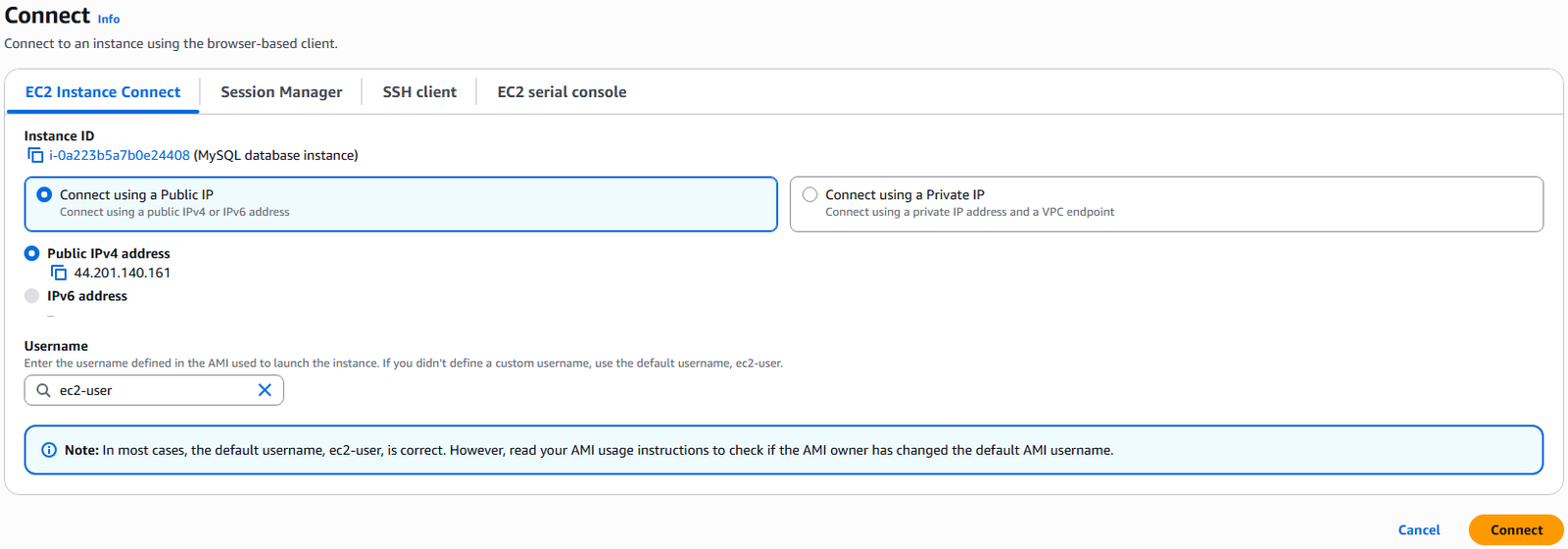
5.   We currently have one EC2 Instances built out, select your instance with a check mark and press the Connect button.

6.   By default you are already in the EC2 Instance Connect tab, it defaults uses the default ec2-user session.  Select Connect.

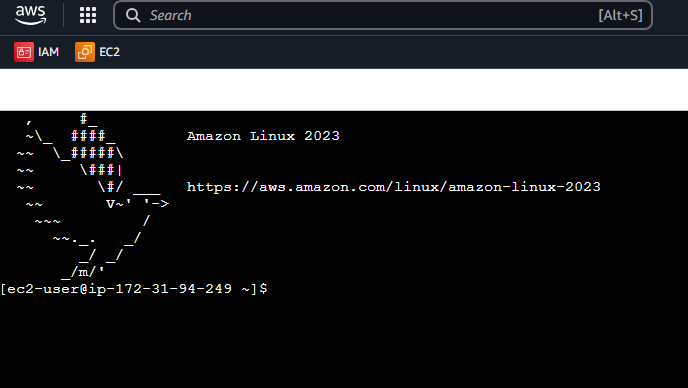
7.   The Instance Connect terminal will startup.

Using SSH in AWS

SSH stands for Secure Shell and it allows you to control an AWS EC2 instances from a remote terminal from a command line interface.  

1.   The following is required before you create IAM user for your AWS Free Tier Account.

  • An Active AWS Account with admin level permissions 
    • The PEM file for your EC2 instance, this was downloaded when you created the instance 
    • The public IP address of your EC2 instance  

2.   Logon to AWS as an IAM user at URL:  https://signin.aws.amazon.com/

3.   From the Home Console type EC2 in the search bar, select the star next to EC2, and select EC2

4.   On the right hand menu bar select Instances.

5.   We currently have one EC2 Instances built out, click on the Instance ID you want.

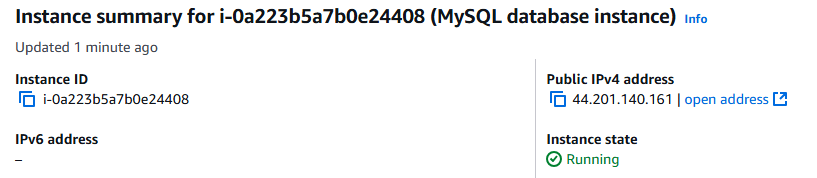
6.   Record the public IP address of your EC2 Instance:  44.201.140.161

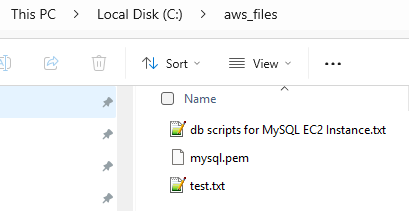
7.   We stored all of our AWS files under c:\aws_files including the required PEM file (mysql.pem for this process.   NOTE:  Ensure that you do not have any spaces in the name of your PEM file or this process will not work.

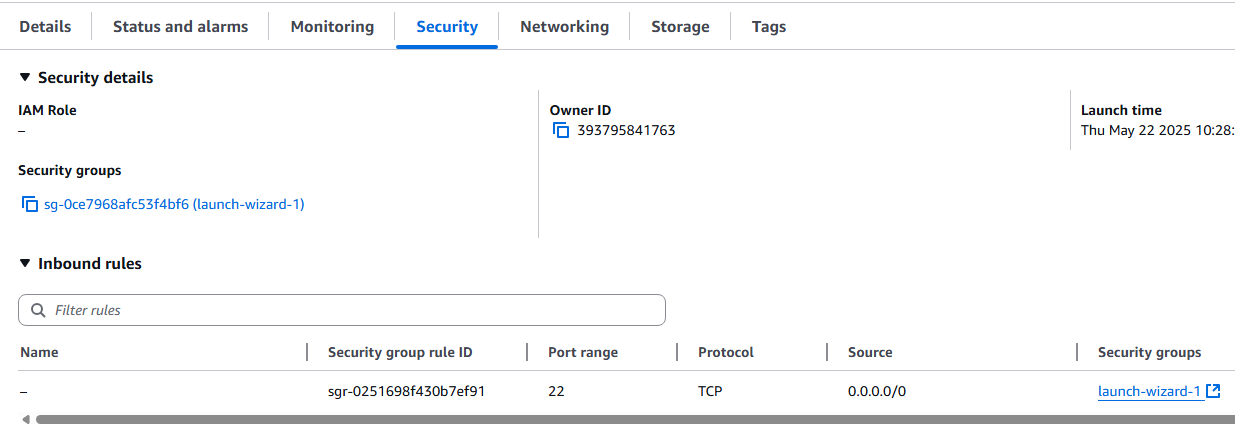
8.   Verify that you have allowed the port connection on 22 from everywhere in the security group of you instance.   This can be verified by going to the security tab and scrolling down to Inbound Rules.

9.   By default AWS EC2 instances already have a user created called ec2-user.   So we can test our connection to EC2 via this account.

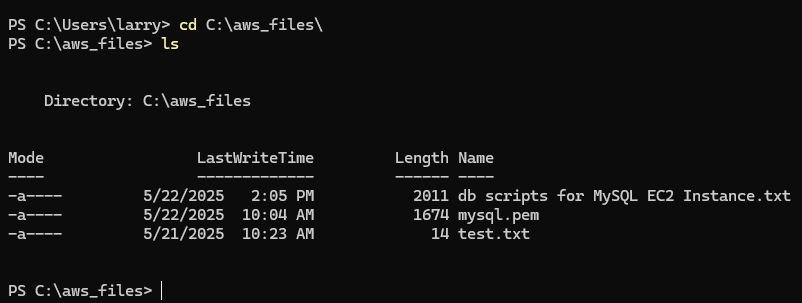
10.   Open a power shell and move to the directory of your AWS files.

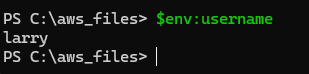
11.   Retrieve the username you are currently logon as with the command $env:username

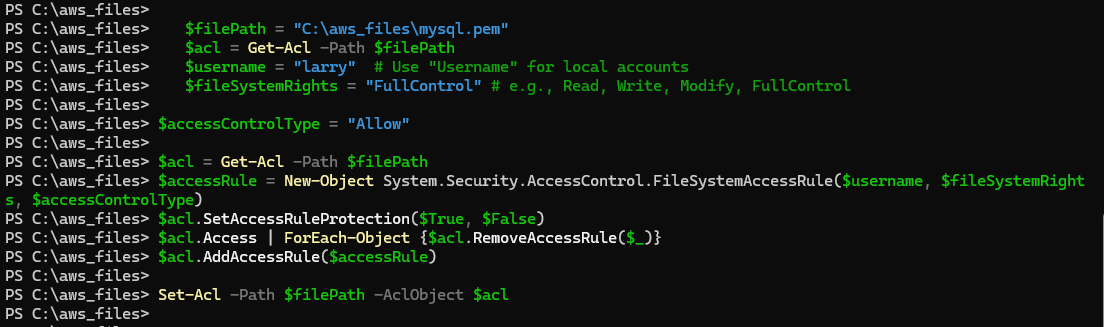
12.   Change the permissions on you PEM file to only allow access to this user.

   $filePath = “C:\aws_files\mysql.pem”
  $acl = Get-Acl -Path $filePath

   $username = “larry”  # Use “Username” for local accounts
  $fileSystemRights = “FullControl” # e.g., Read, Write, Modify, FullControl

$accessControlType = “Allow”

$acl = Get-Acl -Path $filePath
$accessRule = New-Object System.Security.AccessControl.FileSystemAccessRule($username, $fileSystemRights, $accessControlType)

$acl.SetAccessRuleProtection($True, $False)
$acl.Access | ForEach-Object {$acl.RemoveAccessRule($_)}
$acl.AddAccessRule($accessRule)

Set-Acl -Path $filePath -AclObject $acl

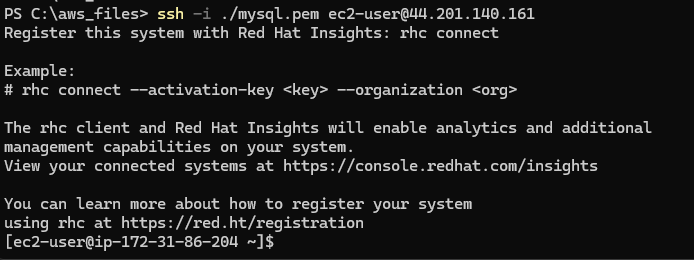
13.   To configure your PEM file for use in the connection, execute command ssh -i <PEM_file> <username>@<public_ip_of_ec2_instance>

  ssh -i ./mysql.pem ec2-user@44.201.140.161

14.   You are now logon to your EC2 Instance.

AWS Security Groups and Ports

Firewalls are mandatory in any computer environment which you wish to call secure.   AWS establishes  the Firewall rules in the system via Security Groups and Ports.   Basically Security Groups define where traffic is permitted to go via established network ports.   Basic characteristics of security groups:

    1.  Security Groups are the Fundamental building block of network security (The Firewall) in AWS.
    2.  They define how traffic is allows into and out of all EC2 Instances.

    3.  Security groups only contain allowed rules.

    4.  Security groups reference IP or other security groups.

    5.  Security groups reference access Ports.

    6.  Security groups can reference both IPv4 and IPv6 networking

    7.  Security groups control both Inbound and Outbound traffic.

    8.  Security groups can be attached to multiple instances.

    9.  Security groups are dedicated to region/VPC

    10.  Security groups are independent of the EC2 Instances they support.

    11.  Best practice to have SSH access in its own security group.

    12.  If connections time out, this is a security group block.

    13.  If Connection refused error, this is the application error.

    14.  By default all inbound traffic is blocked.

    15.  By default all outbound traffic is allowed.

    1.  The following is required before you create IAM user for your AWS Free Tier Account.

    • An Active AWS Account with admin level permissions. 
      • Already created EC2 Instance.   

    2.  Logon to AWS as an IAM user at URL:  https://signin.aws.amazon.com/

    3.  From the Home Console type EC2 in the search bar, select the star next to EC2, and select EC2

    4.  On the right hand menu bar select Instances.

    5.  We currently have one EC2 Instances built out, click on the Instance ID you want.

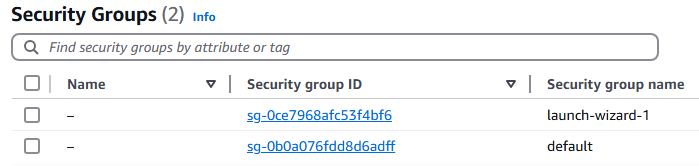
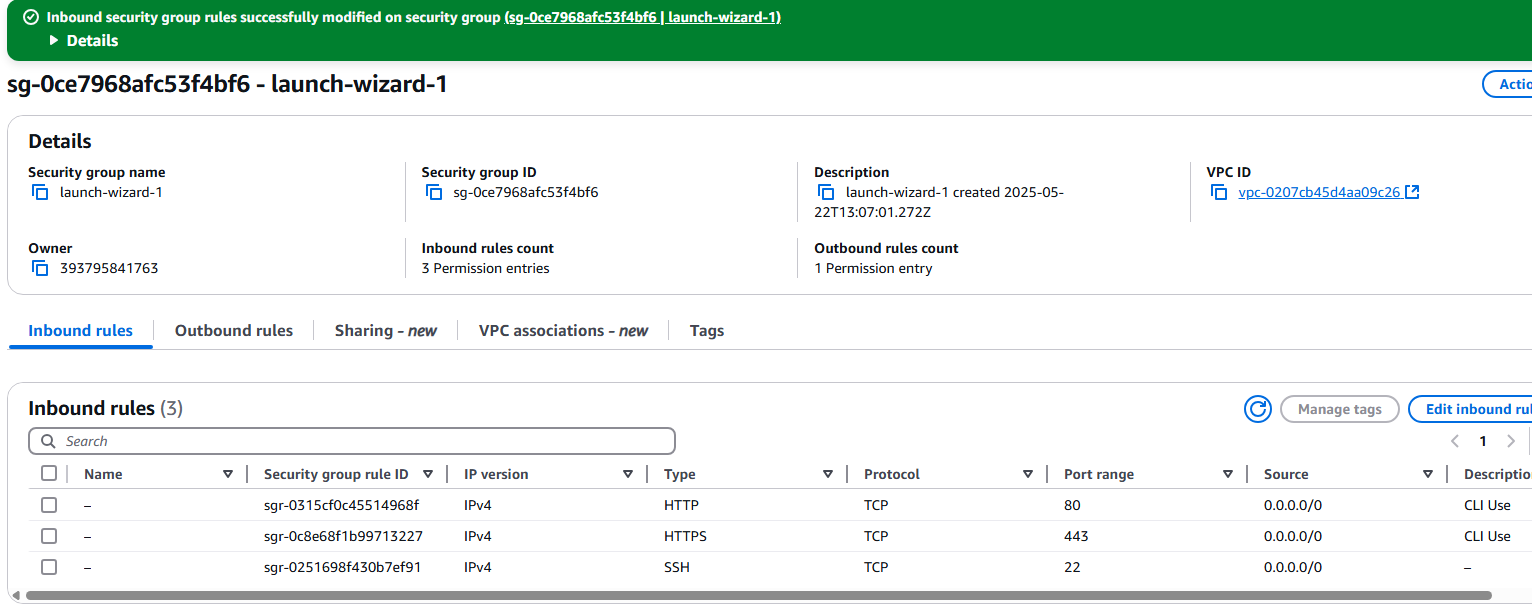
    6.  Select the Security tab and you will see the current security group for this session.   Retrieve the name of the security group attached to this Instance.  In this example the security group is  sg-0ce7968afc53f4bf6 (launch-wizard-1)

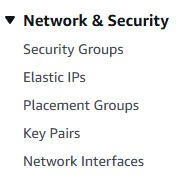
    7.  On the left hand menu bar, scroll down to Network & Security ? Security Group.

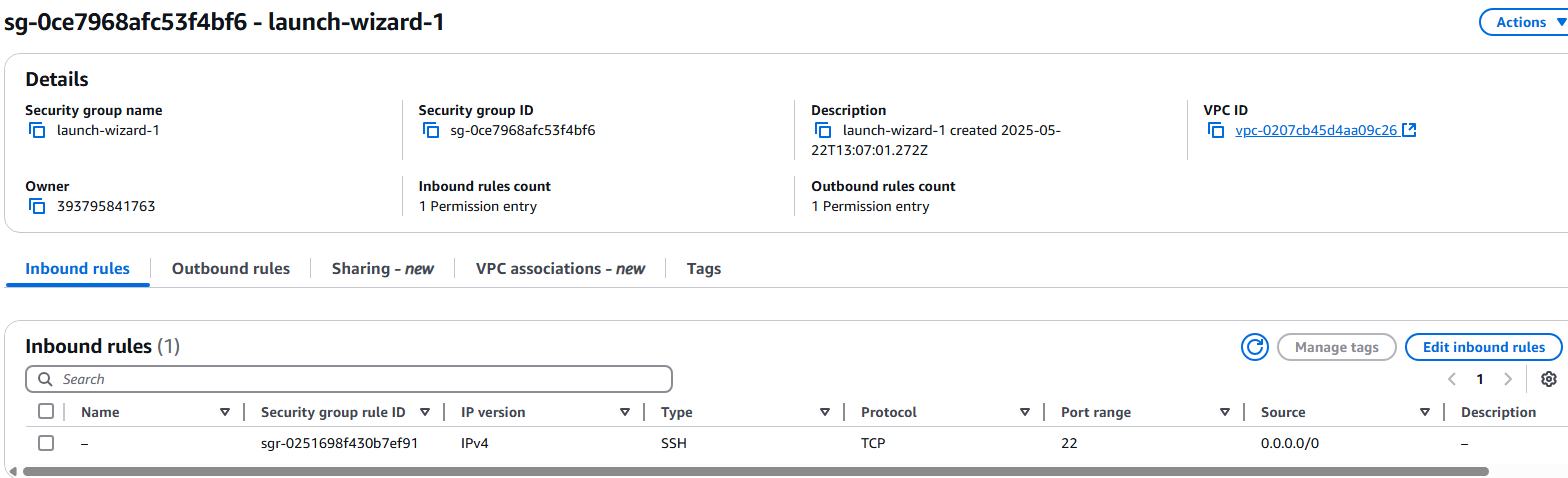
    8.  Click on the security group we found in the previous steps.  sg-0ce7968afc53f4bf6 (launch-wizard-1)

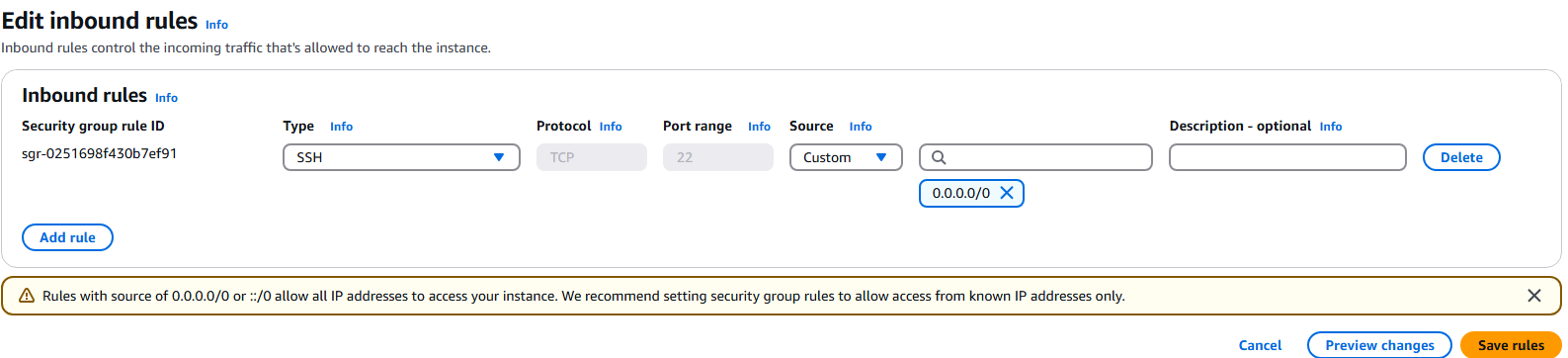
    9.  On the Security group page we want to open the Inbound rules tab and select Edit inbound rules.

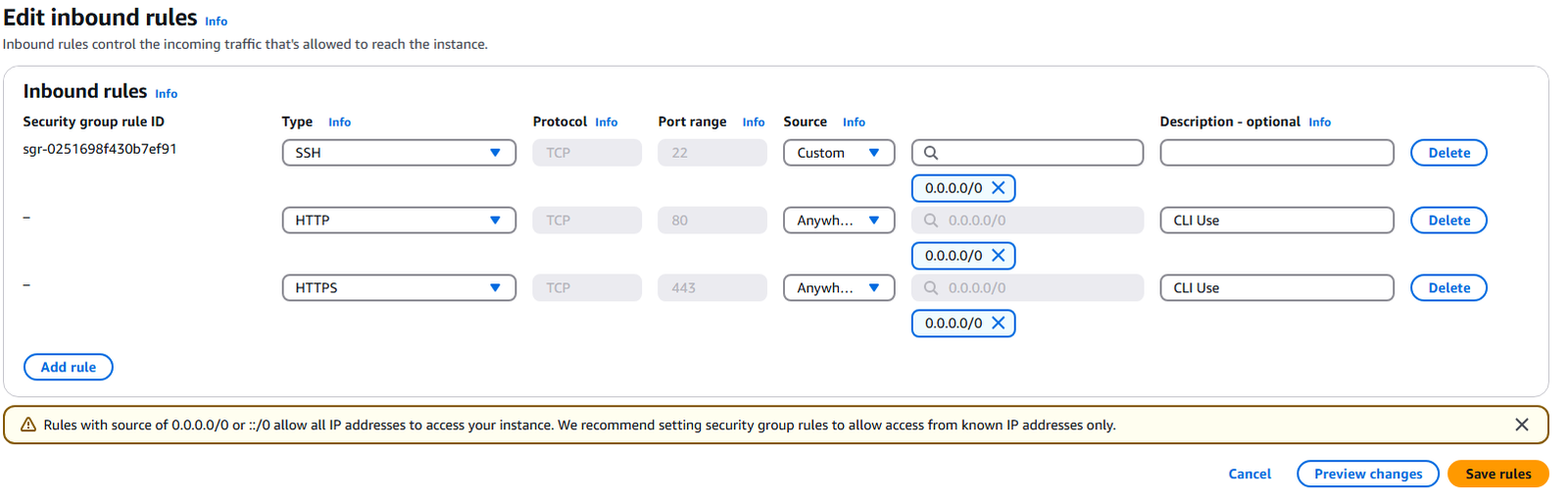
    10.  On the Edit inbound rules page, select Add Rule

    11.  We want to connect to this via HTTP and HTTPS, so we need to allow traffic on port 443 and 80 from any IP. Click Save rules.

    12.  Back on the Security Group page you will see your new rules.

    13.  This completes adding rules to a security group.

    AWS EC2 Instance types explained

    AWS has created multiple EC2 Instance types for various organizational applications.   An EC2 Instance is comparable to a Virtual Server in an on premises data center.   Depending on the use of the server, you will have varying CPU capacities, Memory allocations, number of Network Cards, different network speed allocations, and different type of storage allocated.  An EC2 Instance has the exact same types of different allocations.    An example of this is that a web server will not have the same ratio of CPU or Storage Capacity to network bandwidth that a database server will have.   You can view the standard type of AWS EC2 Instances at the URL:

    https://aws.amazon.com/ec2/instance-types

    Here you can see the Types of EC2 Instance available to you in the standard offering.   It is important to realize the a Type of Instance does not necessarily correlate to sizing.    Each Instance Type has a multitude of sizes offered.   The Instance types refer to the ratio or balance of server capacity to there intended use.   Note that within each Instance type you have a range of configuration capacity options.

    The Instance Names can be broken down as follows:  We will use the example. M5.2xlarge

            –  m – is the instance class

            –  5 – the generation (improvement of class over time by AWS, normally changing with new hardware)

            –  2xlarge – size in the instance class

    EC2 Instance Type

            –  General Purpose

       *  Balance between Compute, Memory and networking.

       *  Web servers

       *  Repositories.

                    *  T and M Instances Classes

            –  Compute Optimized

       *  Intense computing uses

         *  Batch Processing

         *  Media manipulation

         *  High performance web servers

         *  HPC – High performing Computing

         *  Scientific Modeling

         *  Gaming servers

                    *  C Instances Class

            –  Memory Optimized

         *  For processing large data sets in memory

                    *  In-memory relation database

                              *  Distributed web cache

                                *  Business Intelligence – Reporting

                                *  Big unstructured data

                                *  R, X, Z Instances Classes

            –  Accelerated Computing

                    *  Hardware accelerated comput

                    *  Graphics systems

                    *  Mathematical calculation system

                    *  Data pattern matching

                    *  P, G, T, D, F, V Instances Classes

            –  Storage Optimized

                    *  Storage related computing – High Reads and Writes.

                    *  OLTP systems

                    *  Relation Databases

                    *  Cache Database

                    *  Data Warehouses

                    *  Distributed file systems

                    *  I and D Instances Classes

            –  HPC Optimized

                    *  High Performance Computer offering

                    *  Engineering

                    *  Weather modeling

                    *  molecular modeling

                    *  H Instance Class

    •  

    AWS Starting, Stopping and Terminating an EC2 Instance

    An EC2 Instance in AWS can be considered a server and as such can reside in your AWS environment without executing.   In an AWS environment this has sever ramifications on Cost,  because an EC2 instance that is not currently executing only incurs storage costs and the customer avoids virtual machine costs and network utilization costs.   In this article we will review the process for starting, stopping and terminating already created EC2 instances.

    1.  The following is required before you create IAM user for your AWS Free Tier Account.

     –  An Active AWS Account with admin level permissions..

    2.  Logon to AWS as an IAM user at URL:  https://signin.aws.amazon.com/

    3.  From the Home Console type EC2 in the search bar, select the star next to EC2, and select EC2

    4.  On the right hand menu bar select Instance.

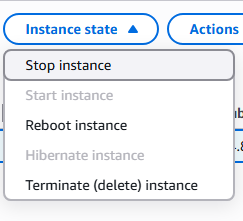
    5.  We currently have one EC2 Instances built out, select your instance with a check marki and press the Instances state.  NOTE:  Record the instance ID for each of your EC2 instances to control them from the CLI.   In this example our Instance ID is i-0a223b5a7b0e24408

    6.  From this menu you can start, stop and terminate the instance.  Note:   Terminating an instance is recoverable, but the resources you had before are not guarantied to be available, so insure that you will not need the instance before terminating and place it in a stop state if there are any doubts.

    7.  You can also start, stop and terminate EC2 instances from you CLI application without logging into the console with the following commands and the instance id shown in setup 5 and the region id of the instance.   In this example our Instance ID is i-0a223b5a7b0e24408 and the region_id is  us-east-1   NOTE:   You have to have

       – Reports the details of your instance

      aws ec2 describe-instances –instance-ids i-0a223b5a7b0e24408 –region us-east-1

       – Stops the instance

      aws ec2 stop-instances –instance-ids i-0a223b5a7b0e24408 –region us-east-1

       – Starts the instance

      aws ec2 start-instances –instance-ids i-0a223b5a7b0e24408 –region us-east-1

       – Deletes the instance

      aws ec2 terminate-instances –instance-ids i-0a223b5a7b0e24408 –region us-east-1

    AWS Creating EC2 Instance

    The creation of an AWS EC2 Instance is normally accomplished via the AWS Console, but can be performed via the Command Line Interface (CLI).   In this example we will create a simple EC2 virtual instance with various parameters.  We will start the instance using a User Data script defined for mysql configuration.

    1.  The following is required before you create IAM user for your AWS Free Tier Account.

            –  An Active AWS Account with admin level permissions..

    2.  Logon to AWS as an IAM user at URL:  https://signin.aws.amazon.com/

    3.  From the Home Console type EC2 in the search bar, select the star next to EC2, and select EC2

    4.  On the right hand menu bar select Instance.

    5.  We currently have no EC2 Instances built out so this screen will be empty,  press the Lauch Instances to begin

    6.  There are multiple sections on a single screen so we will take the inputs section by section.  First provide a name for the new instance and select RHEL as the OS.

    7.  Next select the AMI (Amazon Machine Image) and the architecture, here insure that you select the one which states “Free tier eligible”.

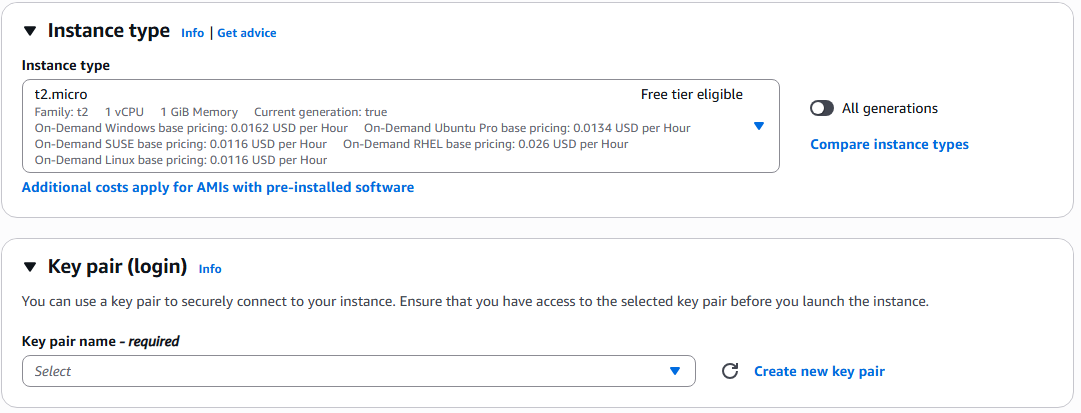
    8.  Next in the section Instance Type select t2.micro which is free tier and in Key pair (login) click Create new key pair.

    9.  On the Create key pair page, name you key pair, select RSA, and Private key file format of .pem and select Create key pair.    NOTE:  if you are using windows 10 or below or Mac you may want to select .ppk if you intend to use Putty.   Most will be using OpenSSH.

    10.  Insure that you store your .pem file in a secure location

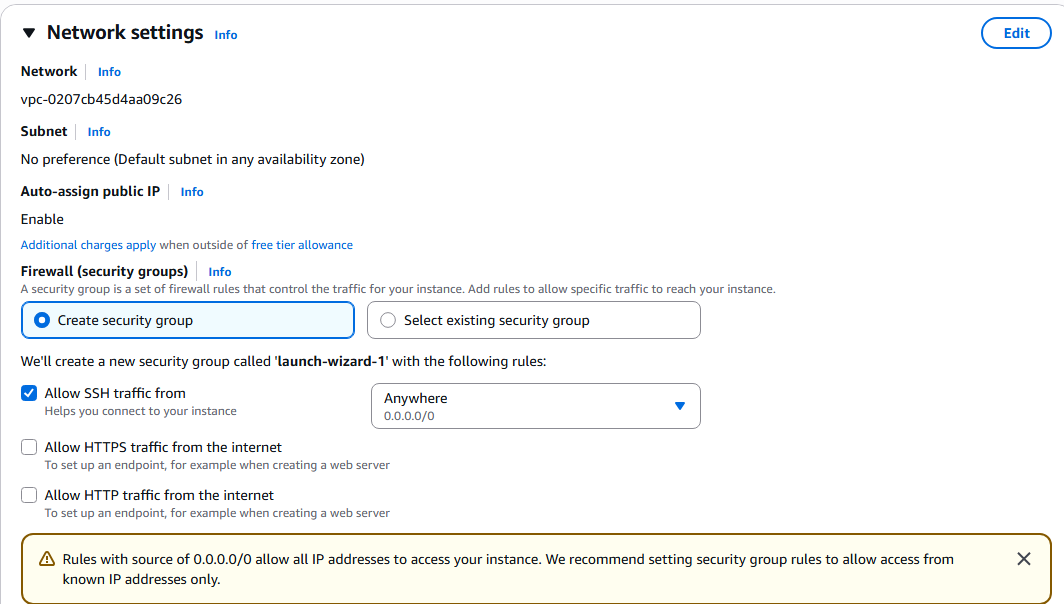
    11.  The next section is Network settings and will except the general defaults.  A public IP will be assigned to our instance with the security group of launch-wizard-1 but you do have the option of selecting your owner security group for firewall configuration.   We are creating a database EC2 instances so will only allow SSH traffic from outside, but if you where configuring a webserver or boundary server you may allow HTTPS and HTTP connections.  

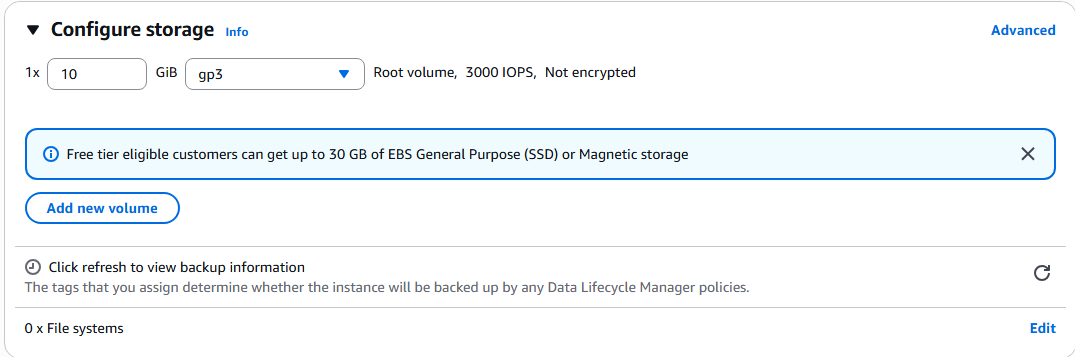
     12.  In the next section Configure Storage, you will select the type and speed of storage you like. We will leave the defaults.

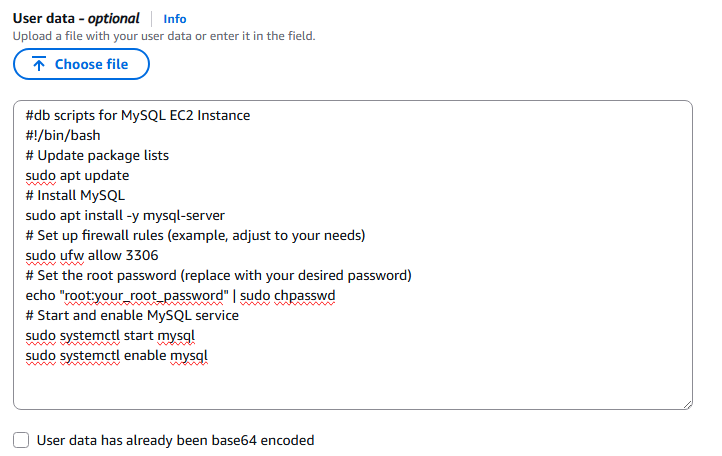
    13.  Next click the Advanced details section to expand.  This is a simple EC2 database instance, so we will select all of the defaults, except the User data section.  We will cut and past our own code to install a mysql database, start the database, and enable the database at first startup. Note: User Data is only executed at first instance startup.

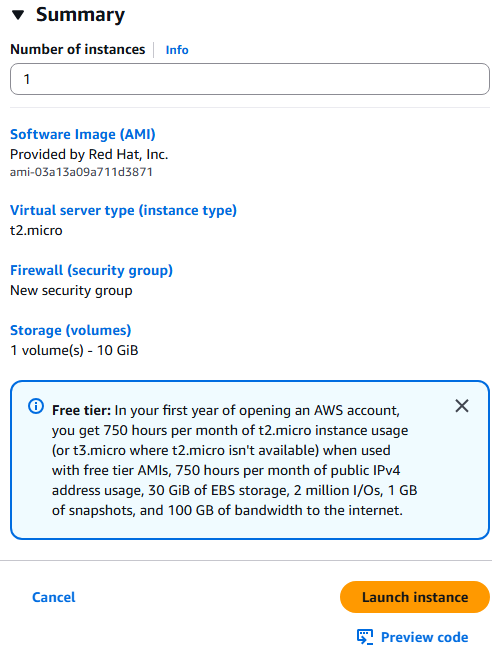
    14.  Next select you can execute Launch instance button.

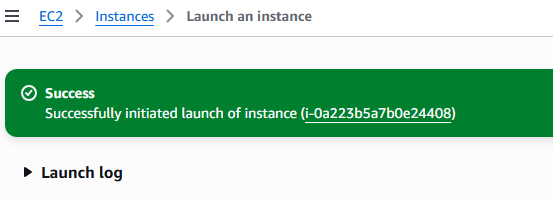
    15.  You will get a confirmation windows of Successful EC2 Instance startup.

    16.  Moving back to the EC2 ? Instances Console and selecting refresh, you can see that the new EC2 Instance is in a Running state by is currently initializing (meaning the user data is still executing).

    17.  Once completed, the status will change to green and is available for user,  insure that you note the IP address for future connections via CLI.

    18.  This completes creating of a database EC2 Instance.